Moving photos, videos, and documents from an Android phone to a Mac sounds simple. In real life, it can be fussy. Two tools many people hear about are HandShaker and Android File Transfer (AFT). This guide explains what each app does, how they differ, and which one fits common needs today. One important note up front: Android File Transfer is no longer supported or offered by Google, so it may not work on modern Macs and you should not expect updates. Google Support
What these apps do
Both apps help you browse your phone and copy files to or from a Mac over USB.
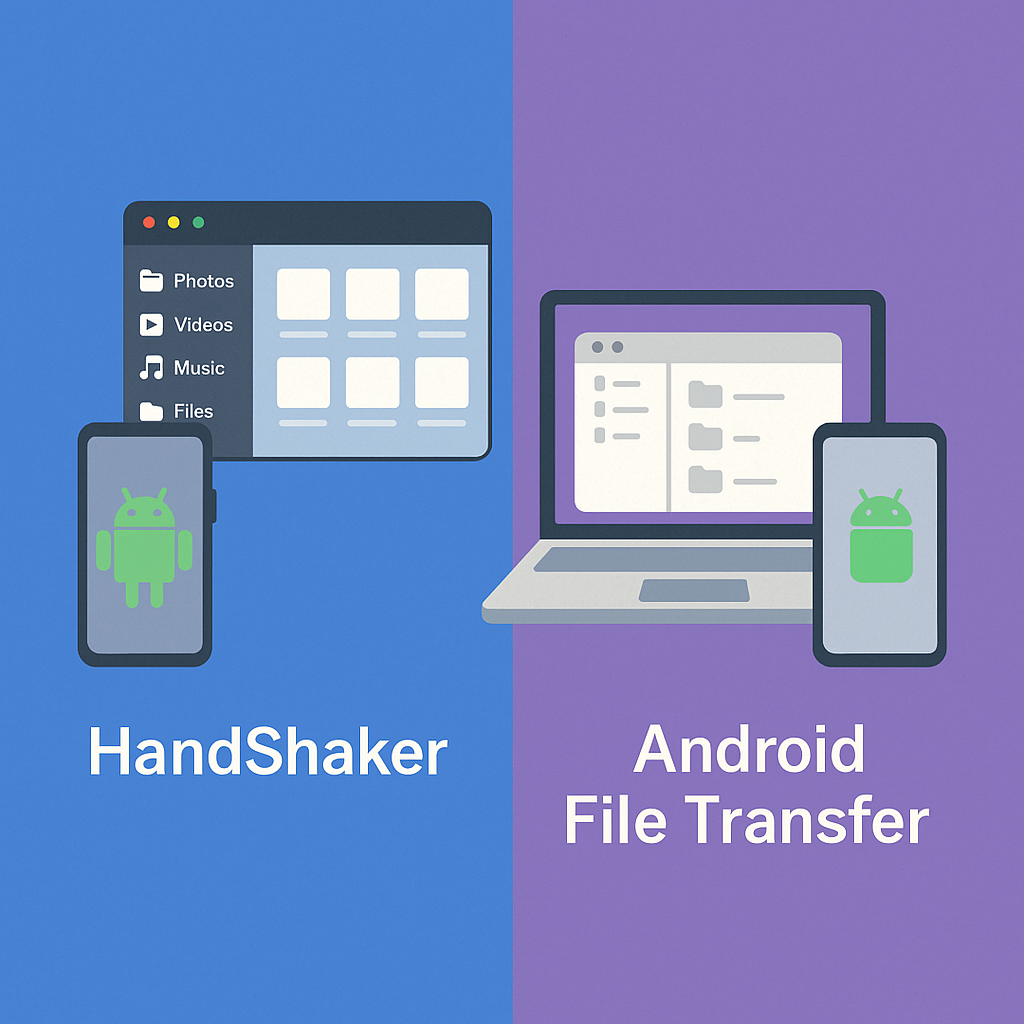
Android File Transfer (AFT) was Google’s tiny utility for drag-and-drop copies. It opens a simple window that shows your phone’s folders. Since Google pulled the Mac download, it’s now a legacy option.
HandShaker is a third-party manager (originally by Smartisan) with a nicer interface. It organizes photos, videos, music, and files and has long been known for easy browsing. Some versions also support wireless pairing. Handshaker MacUpdate
Setup and first run
Android File Transfer (AFT). When it existed as a Google download, setup was: install, connect your phone, unlock it, and choose File transfer (MTP) on the phone. The app showed a basic file list for drag-and-drop. Today, because Google removed the installer, many users move on to other methods. Google Help
HandShaker. Install the Mac app from an official distributor, connect the phone with a data-capable USB cable, unlock the phone, and (if prompted) pick File transfer (MTP). HandShaker loads a cleaner, media-first layout with thumbnails and clear progress bars. Some releases mention optional Wi-Fi pairing for convenience, though USB is still fastest for big jobs.
Common gotchas (both apps). Bad or “charge-only” cables, a locked screen, not selecting MTP, or another tool “grabbing” the phone can all block transfers. Google’s help pages list these basics for moving files with USB.
Head-to-head: what you’ll notice
Speed and reliability
AFT: OK for a few small files when it works, but large folders can be unreliable – especially since it is no longer maintained by Google.
HandShaker: Built for everyday browsing and long copies; album views and progress feedback make large photo/video moves easier to manage. Verdict: HandShaker is the better choice for regular or big transfers.
Usability and design
AFT: One plain window, minimal controls, no previews.
HandShaker: Thumbnails, simple sorting, and a clearer layout for media and files. Verdict: HandShaker feels modern and friendly.
Features
AFT: Only browse/copy/delete. No Finder mounting and few settings.
HandShaker: Media views, previews, and (in some builds) wireless connection. Verdict: HandShaker offers the tools most people want day to day.

Workflow on the Mac
AFT: Always a separate, basic window.
HandShaker: Still a separate app, but its gallery-style UI and clearer progress make it feel closer to normal Mac use. Verdict: Edge to HandShaker.
Compatibility and updates
AFT: Google removed the Mac download and states it will not return. Expect no updates. Verdict: Legacy.
HandShaker: Third-party software; check the current build and OS support on trusted distributors before you install. Verdict: Safer day-to-day than AFT, but always verify the version.
Privacy and safety
Both apps work locally and ask for USB permissions. To reduce risk, download only from official or trusted sources and keep your phone and macOS updated. Google’s USB guidance applies here as well. Verdict: Draw.
Pricing and value
AFT: Free, but unsupported. If it is already on an older Mac and still runs, it can do small jobs, but it is not a reliable plan for the future.
HandShaker: Typically free or low-cost depending on the distributor. Given the better design and easier media handling, it often saves time if you move files weekly.
Rule of thumb: If you copy files only a few times a year, any free option might be fine. If you handle photos and videos often, the smoother app is worth it.
Real-life scenarios
You shoot lots of 4K video or many photos. Use HandShaker for steady long copies and quick visual selection.
You only need to grab a few PDFs or songs. If AFT is already installed and still works on your Mac, it can be enough – but remember it’s no longer supported by Google.
You want wireless. Some HandShaker builds offer Wi-Fi pairing for light transfers; it’s slower than USB but handy.
You prefer official Google or vendor tools. Google now promotes Quick Share for Windows for Android↔PC, and Samsung guides Galaxy owners to Smart Switch for full device moves and backups.
Quick troubleshooting
- Try a different USB-C/USB-A cable and port; many cables are charge-only.
- Unlock your phone and set USB → File transfer (MTP).
- Close Android Studio or OEM managers that might “capture” the device.
- Accept any prompts on the phone; then unplug/replug.
- If a copy stalls, restart both devices and try smaller batches.
These steps follow Google’s general advice for USB file moves.
Smart alternatives to know
Samsung Smart Switch for Galaxy-to-Galaxy transfers and computer backups on supported models. Samsung
Quick Share for Windows to send files between Android and a Windows PC quickly and securely.
Cloud tools like Google Photos or Google Drive when you prefer wireless uploads and don’t mind using your data or storage quota.
Verdict
- Choose HandShaker if you want an easy, modern interface, previews, and smoother large transfers on a Mac. It is the more practical everyday tool.
- Choose Android File Transfer only for quick, occasional copies if it already works on your Mac, and remember that Google no longer supports or provides the app. For most people in 2025, official paths like Smart Switch (Galaxy) or Quick Share for Windows (PC) and well-maintained third-party tools will deliver a better experience.