Moving photos, videos, and documents between an Android phone and a Mac should be simple. In practice, it can be messy. For years, many people used Google’s Android File Transfer (AFT) app. But that era is over: Google no longer offers Android File Transfer for macOS and has moved its guidance toward other methods.
If you only need a free, bare-bones tool, the old AFT may still be found on mirrors, but it isn’t supported by Google anymore. For a smoother, more Mac-like experience today, MacDroid is the better pick. 9to5google

What these apps do, in plain English
Both tools exist to copy files between Android and macOS over USB.
Android File Transfer was Google’s small utility for browsing phone folders and dragging files. It is no longer provided by Google for Mac users.
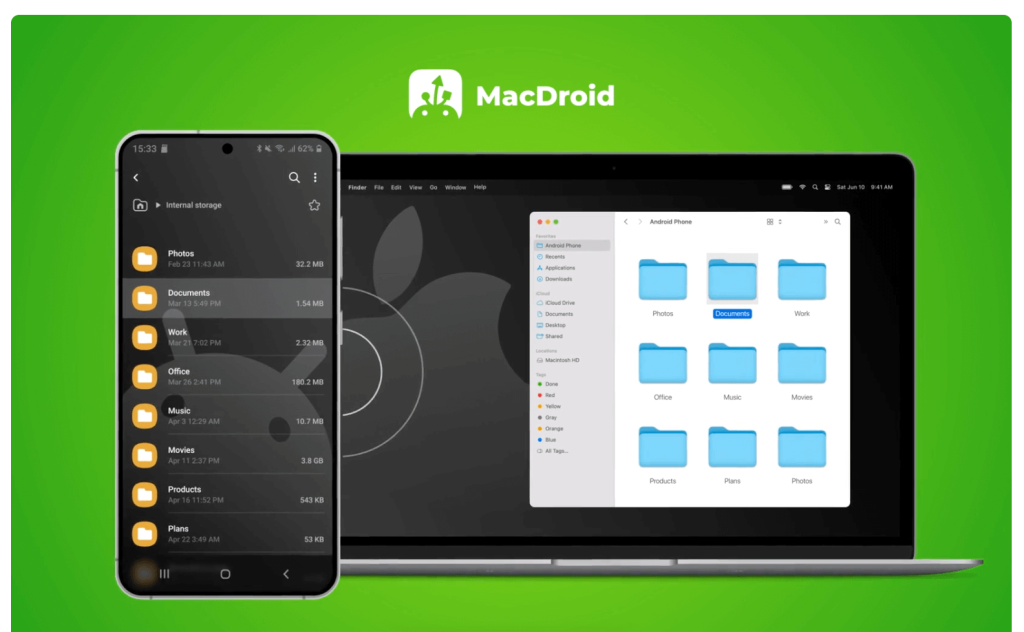
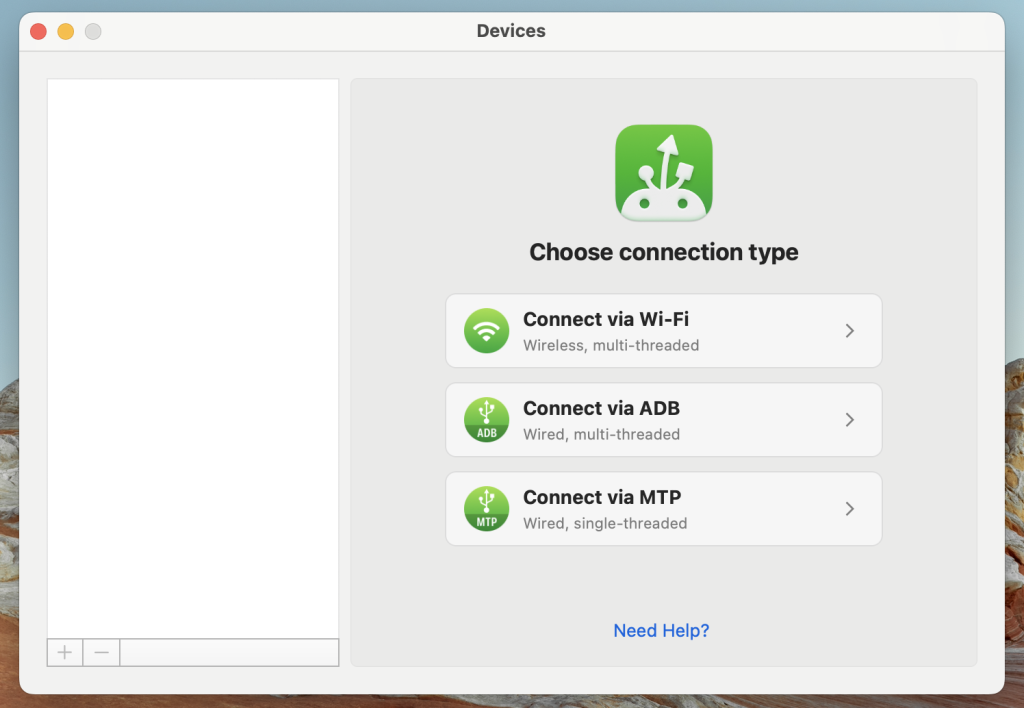
MacDroid is a third-party app that mounts your Android device like a disk in Finder, so it feels like using any external drive. It supports standard MTP connections and offers an ADB mode. Wi-Fi transfer mode is also available. MacDroid
Setup and first run
Android File Transfer (AFT). When it was available, setup was simple: install, plug in the phone, and a basic window appeared. In recent macOS versions, many users reported issues with device detection and random failures, which led people to look for alternatives. Now that Google has pulled the macOS download, the official path forward is gone. SuperUser
MacDroid. Install the app, grant the requested permissions, connect via USB (or set up Wi-Fi mode), and your phone appears in Finder like a drive. You can open folders, drag files, and use familiar Mac workflows.
Tip: No matter which method you try, cable quality, locked screens, and the phone’s USB mode (set to File Transfer/MTP) are common gotchas. Google Help
The head-to-head: what you’ll notice
1) Speed and reliability
AFT: Fine for a few small files, but many users hit random disconnects or errors on big folders – especially on newer macOS releases. With Google no longer providing the Mac app, reliability will only get shakier over time. SuperUser
MacDroid: Handles large photo/video dumps better and keeps long copies running. Mounting in Finder also means fewer odd surprises mid-transfer.
2) Usability and Finder integration
AFT: Opens its own minimal window with list views and limited previews. It never felt truly “native” on Mac.
MacDroid: Shows up like an external disk in Finder, so you can use drag-and-drop, Quick Look, and your normal Mac habits.
3) Features
AFT: Just the basics – browse, copy, delete – when it existed on Mac. No extra tools. (And again, Google no longer offers it.)
MacDroid: Mounts internal storage and SD cards from MTP devices, works over USB or Wi-Fi, and offers an ADB connection mode for tricky devices.
4) Compatibility and updates
AFT: Google removed the macOS download and its support pages now focus on Windows, Chromebooks, and Quick Share for Windows. That says it all for future compatibility on Mac.
MacDroid: Actively maintained by its developer, with a current website, docs, and Mac App Store presence.
5) Security and privacy basics
Both approaches run locally and need your permission over USB. Always download only from official sources (developer site or the Mac App Store) and keep macOS/Android updated.
Pricing and value
Android File Transfer: Historically free, but no longer offered by Google for macOS. If you find it elsewhere, understand that it’s unsupported and may break without warning.
MacDroid: Free plan supports Android → Mac transfers. Pro adds Mac ↔ Android two-way copy and comes with a 7-day free trial. If you move files often – especially big media – MacDroid can save time and frustration.
Rule of thumb: If you transfer once in a while, a simple, free approach might be fine. If you move files weekly or daily, the time saved by MacDroid usually pays for itself.
Real-world scenarios
- You shoot lots of 4K video or burst photos: You want long, stable copy sessions and easy folder moves. Pick MacDroid.
- You only drop the odd PDF or song now and then: A very basic tool used to be enough, but with AFT gone on Mac, a maintained option like MacDroid (free tier) is safer.
- You need SD card access like a normal drive: MacDroid’s Finder mount makes this feel natural.
- You prefer wireless: MacDroid includes a Wi-Fi mode; Google now promotes Quick Share on Windows, not macOS. For Mac, stick with a tool that supports Wi-Fi on Mac directly.
Quick troubleshooting tips
- Try a different USB-C/USB-A cable and port (many cables are charge-only).
- Unlock your phone, then set USB → File transfer (MTP).
- Close other device tools that might “capture” the phone (dev tools, OEM suites).
- Restart both devices if things get stuck.
These steps match Google’s current USB advice and solve most “not showing up” issues. Google Help
Good alternatives (beyond these two)
Cloud: Google Drive or Google Photos for simple uploads and automatic backups. Easy, but watch storage limits and bandwidth.
Wireless utilities: If you prefer cable-free on Mac, use a maintained third-party macOS app that supports Wi-Fi (MacDroid offers this).
Verdict: Who should choose what?
- Android File Transfer (AFT): Once a free staple, but no longer supported by Google on macOS. Unless you already have it and it still works on your setup, it’s hard to recommend in 2025.
- MacDroid: Better Finder integration, steadier big transfers, Wi-Fi/USB options, and active support. If you move files regularly or care about a native feel, this is the practical choice.
Frequently Asked Questions
AFT was USB-only. MacDroid supports USB and Wi-Fi mode on macOS.
No. Google removed the macOS download and its help page now points Mac users to other options.
Is MacDroid free?
There’s a free tier (Android → Mac). Two-way transfer needs the Pro plan with a 7-day trial.