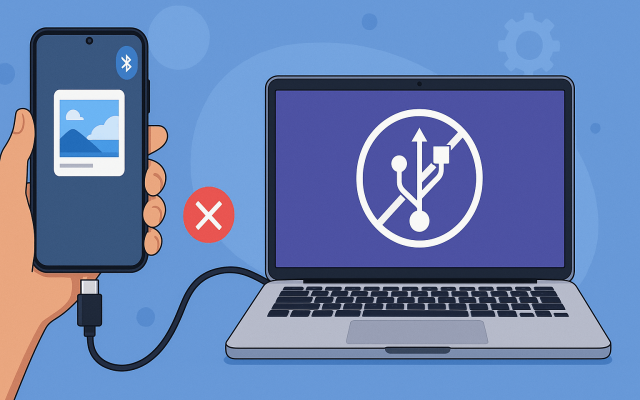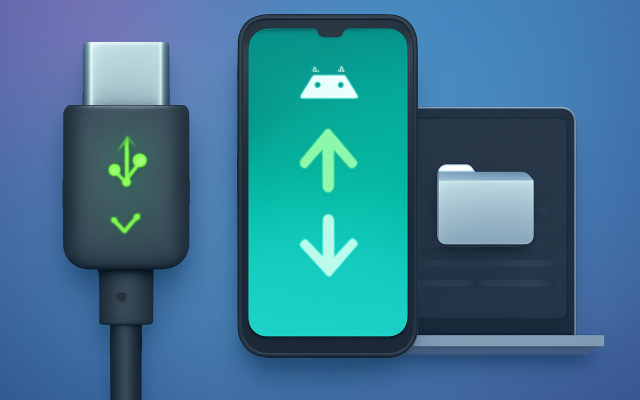

Moving files between a Nothing Phone and a Mac should be simple. Both devices use USB-C, both are modern, and both handle photos, videos, PDFs, and downloads every day. But the moment you connect your Nothing Phone to macOS, you may notice the problem: Finder does not automatically show Android storage the way it does with an iPhone or external drive.
That is because Nothing Phone runs Android, and macOS does not support Android’s MTP file-transfer protocol natively. So, to transfer files from Nothing Phone to Mac smoothly, you need the right app, cable setup, or wireless workflow.
Below are the best methods, starting with the most convenient option for everyday file management.
Best Way to Transfer Files from Nothing Phone to Mac: MacDroid
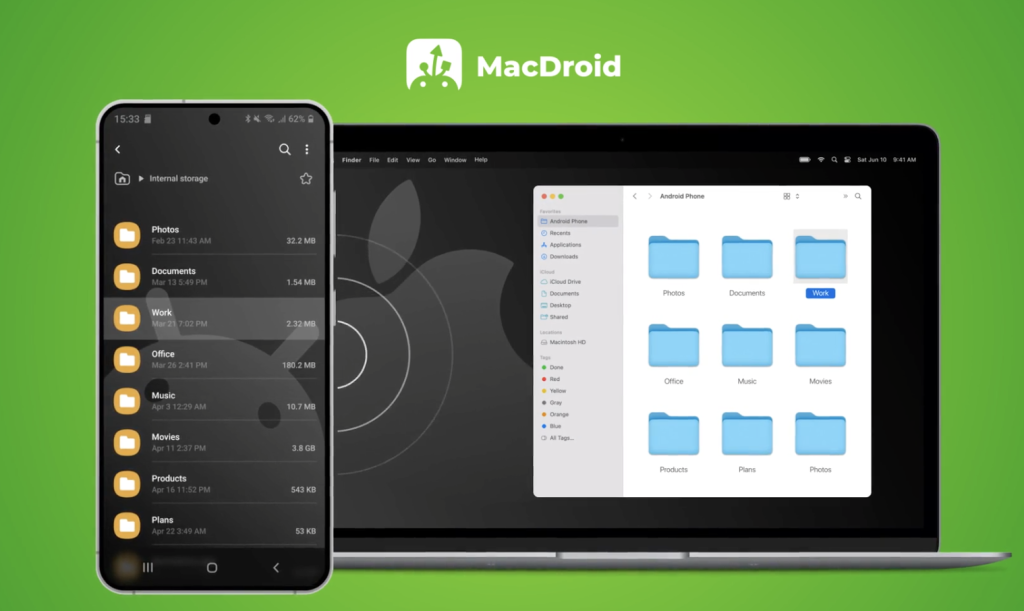
MacDroid is the first tool worth trying if you want a clean, Mac-friendly way to access your Nothing Phone files. It is built specifically for transferring files between Android devices and macOS, and it supports both USB and wireless transfer modes.
In practice, this is the method I would recommend for users who move files often: photos from the camera folder, downloaded documents, large videos, work assets, APK files, music, or folders from internal storage.
Why MacDroid works well with Nothing Phone
MacDroid makes your Android device feel closer to a regular external drive on Mac. Instead of dealing with unreliable pop-ups or basic transfer windows, you can browse folders, move files, and manage content in a more natural macOS workflow.
Key benefits include:
- USB and Wi-Fi connection options
- Support for Android-to-Mac transfers
- Finder-style file management
- Useful for large photo and video folders
- Works with Android phones, including Nothing Phone models
According to the Mac App Store listing, MacDroid’s free version allows Android-to-Mac file transfer, while bidirectional transfer from Mac to Android requires the Pro version.
How to use MacDroid with Nothing Phone
1.Install MacDroid on your Mac
2. Connect your Nothing Phone using a USB-C cable.
3. Unlock your phone.
4. On the phone, tap the USB notification.
5. Select File Transfer under “Use USB for.”
6. Open MacDroid and follow the connection steps.
7. Browse your Nothing Phone storage and copy files to your Mac.
A practical tip: use a proper data-capable USB-C cable. Some charging cables do not support data transfer, which is one of the most common reasons Nothing Phone does not appear on Mac.
Transfer Files Using OpenMTP
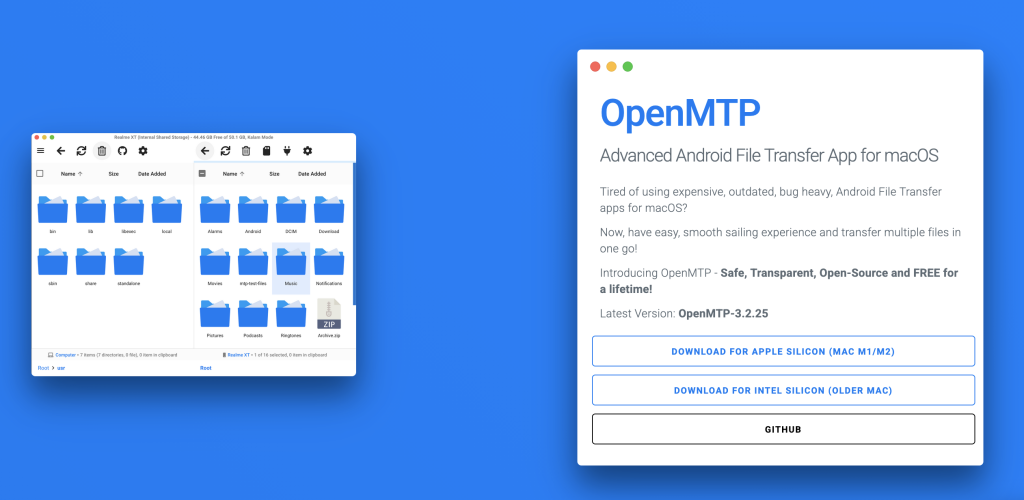
OpenMTP is a popular free and open-source Android file transfer app for macOS. It is designed as an alternative to older Android File Transfer tools and supports batch transfers between Android phones and Mac.
When OpenMTP makes sense
OpenMTP is a good option if you want a free USB-based solution and do not need a polished commercial app. It is especially useful for moving folders such as:
- DCIM camera photos
- Downloads
- Movies
- Music
- Documents
- Screenshots
Basic OpenMTP steps
- Download and install OpenMTP on your Mac.
- Connect your Nothing Phone via USB.
- Unlock the phone.
- Choose File Transfer from the USB options.
- Open OpenMTP.
- Drag files between your phone and Mac panels.
OpenMTP is a popular open-source option for transferring files between Android and Mac, especially if you need a free solution for occasional use. However, performance can vary depending on the device, macOS version, cable, and file size.
Some users may experience connection issues, interrupted transfers, or compatibility limitations, particularly with larger files or less common device setups. So, while OpenMTP is a solid option, it’s worth comparing both tools and choosing the one that best fits your workflow.
Use LocalSend for Wireless Transfers
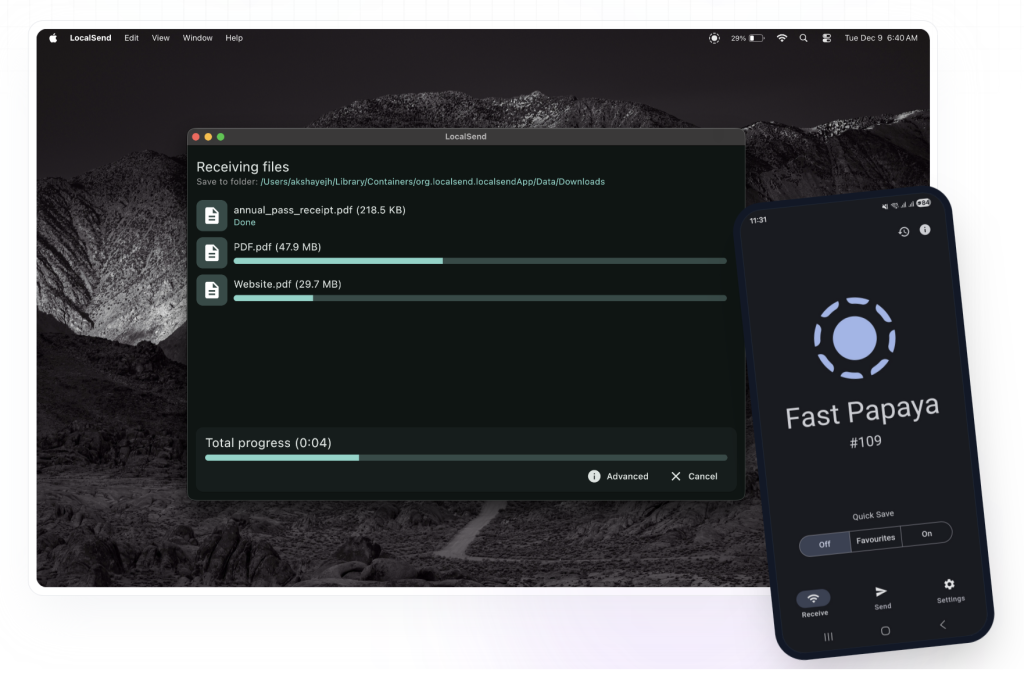
If you do not want to use a cable, LocalSend is one of the best wireless options. It is free, open source, and works across macOS, Android, Windows, Linux, and iOS.
LocalSend works over your local network, which means both your Nothing Phone and Mac need to be connected to the same Wi-Fi. It does not require cloud storage for basic local transfers, making it useful for quick file sharing at home, school, or the office.
Best uses for LocalSend
LocalSend is ideal for:
- Sending a few photos quickly
- Moving PDFs or notes
- Sharing screenshots
- Transferring short videos
- Sending files without creating accounts
How to transfer files with LocalSend
- Install LocalSend on your Nothing Phone.
- Install LocalSend on your Mac.
- Connect both devices to the same Wi-Fi network.
- Open the app on both devices.
- Select files on your phone.
- Choose your Mac as the receiving device.
- Accept the transfer on Mac.
LocalSend is useful for quick wireless transfers between a Nothing Phone and Mac over the same Wi-Fi network. However, users may face device discovery issues, macOS firewall or Local Network permission problems, slowdowns, freezes, or failed large-file transfers. It is best for occasional small files, not heavy file management.
Use Google Drive, Dropbox, or OneDrive
Cloud storage is another simple way to transfer files from Nothing Phone to Mac. It is not always the fastest method, but it is reliable when you are not near your Mac or do not have a USB cable.
Google Drive
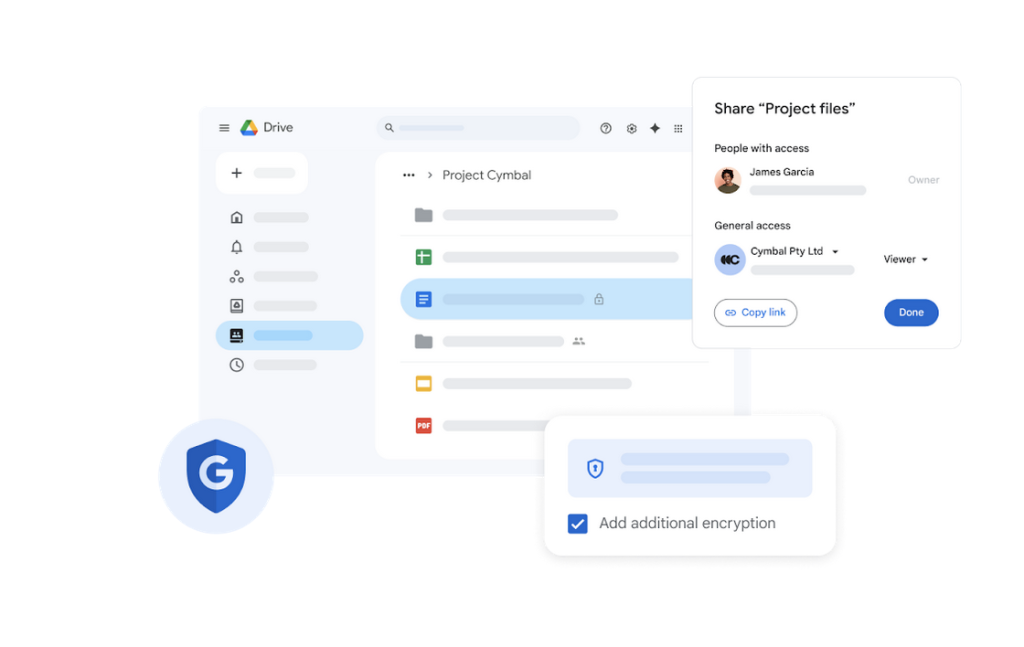
Nothing Phone uses Android, so Google Drive is already a natural option. Upload files from your Nothing Phone, then open Google Drive on your Mac browser or through the desktop app.
Best for:
- Documents
- Photos
- Small videos
- Shared folders
- Work files
Dropbox or OneDrive
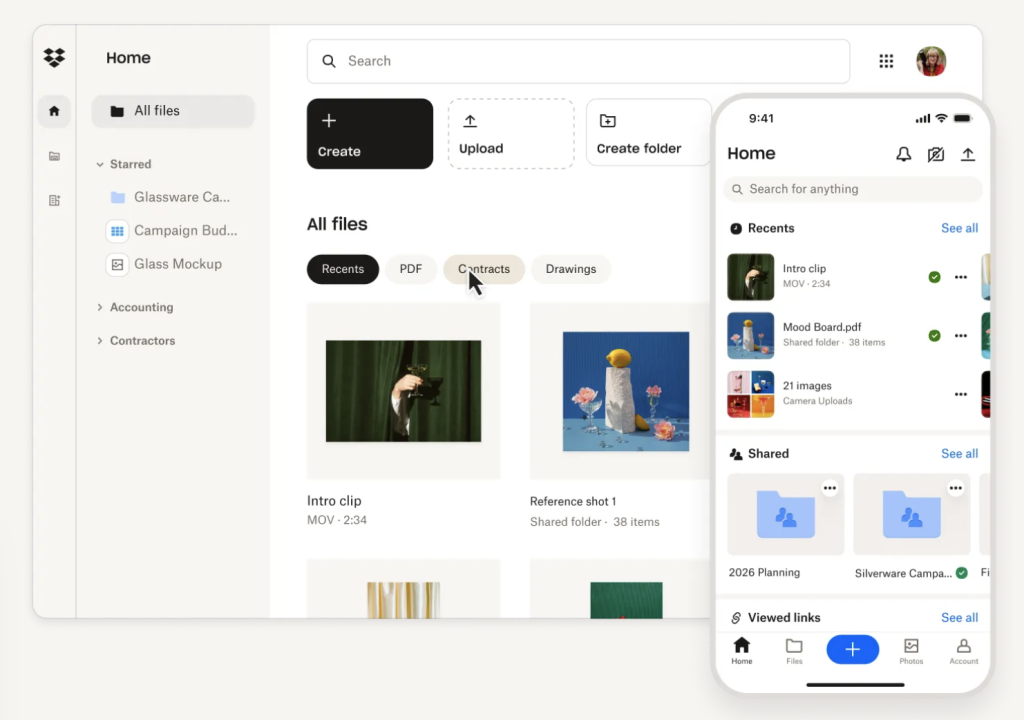
Dropbox and OneDrive are also useful if you already use them for work or school. The main downside is that large files depend on your internet speed and available cloud storage.
Cloud transfer is convenient, but it is not ideal for private local-only workflows or huge video batches. For those cases, a direct USB tool is usually better.
Transfer Photos with Google Photos
If your main goal is moving photos from Nothing Phone to Mac, Google Photos may be enough.
Install Google Photos on your Nothing Phone, enable backup, and then open Google Photos on your Mac. From there, you can download selected photos or albums.
When Google Photos is useful
Google Photos works well if you want to:
- Back up camera photos automatically
- Access pictures from any browser
- Download selected images to Mac
- Avoid manual cable transfers
The downside is that original-quality backups may count against your Google storage. Also, downloading many photos manually can become tedious.
Troubleshooting: Nothing Phone Not Connecting to Mac
If your Nothing Phone does not connect to your Mac, the issue is usually one of four things: USB mode, cable type, permissions, or macOS support.
Nothing’s own support guidance recommends reinserting the USB cable and selecting File transfer under “Use USB for” when the phone is charging but not transferring files. It also suggests checking USB debugging in Developer options if connection issues continue.
Check these first
- Unlock your Nothing Phone before connecting.
- Pull down the notification shade and select File Transfer.
- Try another USB-C cable.
- Try another USB-C port or adapter.
- Restart both devices.
- Update Nothing OS and macOS.
- Use a dedicated Android-to-Mac transfer app.
Avoid this common mistake
Do not assume every USB-C cable transfers data. Many cheap or bundled cables are charging-only. If your phone charges but does not appear in MacDroid, OpenMTP, or another transfer app, the cable is the first thing to test.
Final Thoughts
Transferring files from a Nothing Phone to a Mac mainly comes down to choosing the method that fits your workflow. Since macOS does not natively support Android file browsing, you will need either a dedicated transfer app, a wireless sharing tool, or a cloud-based service.
We’ve gathered the main options for you – including MacDroid, OpenMTP, LocalSend, Google Drive, and Google Photos – along with their strengths, limitations, and common use cases. Some methods are better for regular file management, while others work well for quick one-time transfers or cloud access.
Ultimately, the choice is yours. If you often move files between your Nothing Phone and Mac, a dedicated app may be more convenient. If you only need to send a few photos or documents occasionally, a wireless or cloud-based option may be enough. Choose the solution that best matches how often you transfer files, how large your files are, and whether you prefer USB, Wi-Fi, or cloud storage.