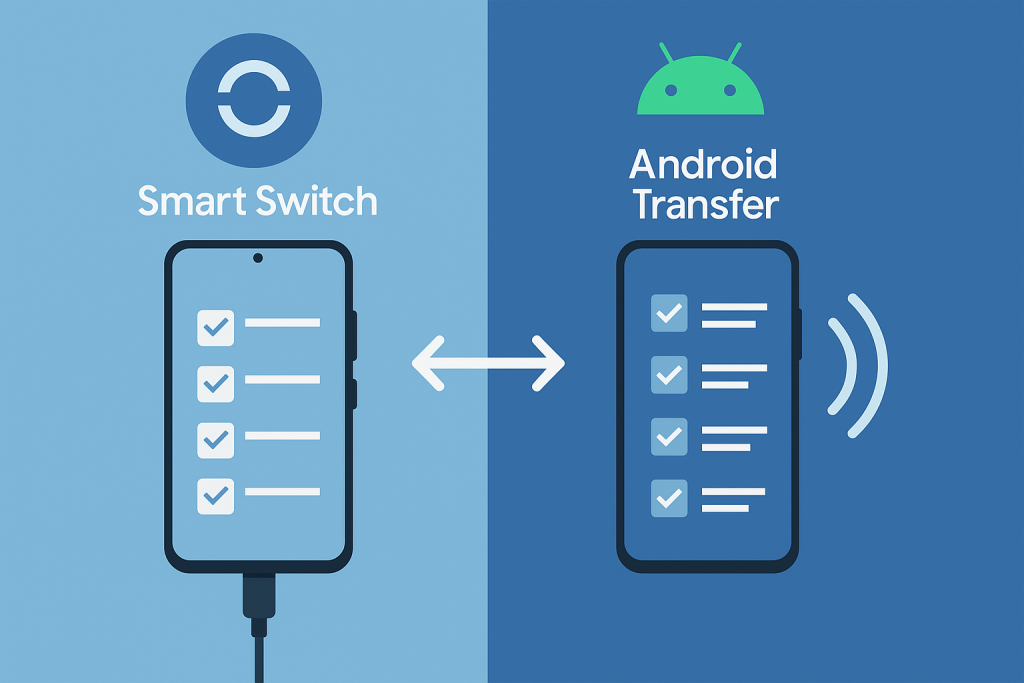
New phone day is fun – until you must move your stuff. The good news: you have two solid tools. Samsung Smart Switch is made for moving to a Galaxy phone. Android’s built-in transfer (Google’s Data Transfer Tool in the setup flow) works on most Android phones. In short: if your new phone is a Samsung, Smart Switch is usually best. If you are moving between non-Samsung Android phones, the built-in transfer is simple and reliable.
Note: Android File Transfer for macOS is no longer supported by Google. Google hid the download and now points users to other options like Quick Share for Windows, not Mac. If you see old links, they’re legacy or third-party mirrors. 9to5Google
Meet the apps
Samsung Smart Switch
Smart Switch moves data from an old Android or iPhone to a new Galaxy phone. You can transfer over USB cable, Wi-Fi, or by using Smart Switch for PC/Mac to make a full backup first. It supports contacts, photos, messages, calendars, and more, as long as the devices and OS versions are compatible. Samsung
Android’s built-in transfer (Data Transfer Tool)
When you turn on a new Android phone, Google’s setup asks if you want to copy your apps and data. You can connect the phones with a cable (recommended) or go wireless following on-screen steps. It restores apps tied to your Google Account and copies supported content.
Setup: how you start
Smart Switch
On many Galaxy phones, Smart Switch is preinstalled. If not, you can install it from the store. Choose your source (Android or iPhone), pick cable or wireless, and select what to copy. Smart Switch for PC/Mac can also create a backup and then restore it to the new Galaxy.
Android transfer
On a new phone, follow the setup steps. Scan a QR or connect a USB-C/Lightning-to-USB-C cable, then pick what to copy. Wireless options are offered if you don’t have a cable, but cable is still the best path. Both tools work best on a fresh device (new or factory-reset).
What you can move
Core data (contacts, SMS, call logs, calendars)
Both tools handle the basics well when devices and versions allow it. Verdict: Tie.
Apps and app data
The Android setup restores your apps from your Google Account; actual app data depends on each app’s own backup support. Smart Switch also restores apps and, on Galaxy-to-Galaxy moves, can carry over more Samsung-specific settings and layout. Verdict: Edge to Smart Switch for Galaxy users. Google Help
Photos and videos
Both copy local media directly. If your photos live in cloud services, you’ll still sign in and sync them there. Verdict: Tie.
WhatsApp and other chats
WhatsApp now has official transfer paths between Android phones and from iPhone to Android. Follow the in-app prompts during setup for the cleanest result. Verdict: Tie (follow the official flow).
Home screen and layout
Android’s tool restores the basics. Smart Switch can recreate more of the Samsung look (folders, icons, some settings) when moving to Galaxy. Verdict: Smart Switch for Samsung styling.
From iPhone
Both paths guide iPhone-to-Android moves; Smart Switch includes clear steps for Galaxy targets and iCloud permissions where needed. Verdict: Slight edge to Smart Switch if your destination is Samsung.
Speed, reliability, and connection types
Cable is fastest and most reliable on both tools. Wi-Fi works and is convenient, but it is slower for large libraries. If your Wi-Fi is weak or you want a full image-style backup, Smart Switch for PC/Mac can help – back up, then restore to the Galaxy. For big photo/video collections, use cable + wall power on both phones. Verdict: both are strong by cable; Smart Switch adds the computer route and often feels smoother Galaxy-to-Galaxy.
Compatibility and ecosystem fit
If the target phone is a Samsung Galaxy, Smart Switch is designed for you and supports moves from Android and iPhone. If you are switching between different Android brands, the built-in transfer is brand-neutral and shows up in the setup of most modern Android phones. If you stay in Samsung’s world over time, Smart Switch keeps things familiar.
Privacy, security, and cost
Both tools run locally and ask for clear permissions. Cable keeps data off Wi-Fi; wireless uses secure links created by the apps. Price: both are free. Use trusted cables, keep devices plugged in, and sign out of the old phone when you are done.
Real-world scenarios
- Galaxy to Galaxy, with lots of 4K video: Use Smart Switch with a cable; consider a full PC/Mac backup first for extra safety.
- Pixel to OnePlus (or brand-to-brand): Use the Android setup transfer with a cable for the simplest flow.
- iPhone to Samsung: Use Smart Switch’s iOS path and follow the prompts; have the right cable ready.
- Spotty Wi-Fi, huge library: Go wired and keep both phones on power. (Both tools recommend cable for best results.)
Quick troubleshooting
Update both phones and the apps. Try a different USB-C or Lightning cable and port. Unlock the source phone and accept any prompts. If you see a USB option, pick File transfer/MTP. Turn off other device-manager apps, reboot both phones, and switch to cable if wireless fails. These tips reflect Google’s and Samsung’s guidance.
Where Quick Share fits - and why AFT is gone
For moving files between Android and Windows, Google now promotes Quick Share for Windows. It’s handy for ad-hoc file moves after your phone is set up. There is no Quick Share app for macOS from Google. This shift is one reason the old Android File Transfer for Mac is no longer offered. If you need Android↔Mac file copies, use other maintained tools or cloud options.
Verdict
- Choose Samsung Smart Switch if your new phone is a Galaxy and you want the most “it just works” Samsung-style restore, plus the option to make a full backup on a PC/Mac first.
- Choose Android’s built-in transfer if you’re moving Android to Android across brands and want the simple, official setup path. Use a cable for the best result.
And remember: Android File Transfer for macOS is no longer supported by Google, and Google now focuses on Quick Share for Windows or the phone-to-phone setup tools above.