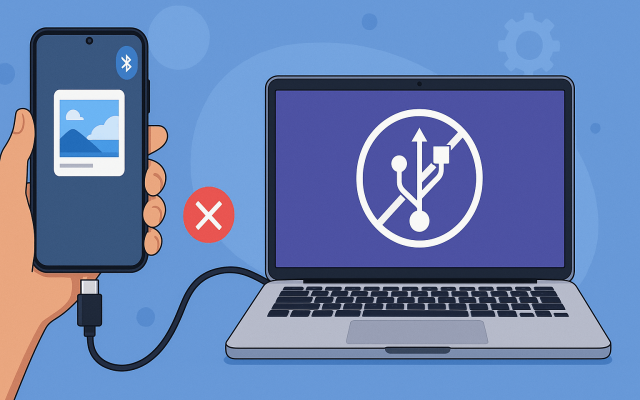
Moving files between Android and macOS is still not as seamless as it should be. Plugging in a Fairphone doesn’t automatically give you Finder access, and native support for Android file transfer on Mac is limited.
We tested the process on the latest Fairphone models (FP5 and FP6), focusing on real-world usage: large media files, folders, and everyday workflows. The result is straightforward – there are two reliable tools that consistently work: MacDroid and OpenMTP.
If you’re trying to connect to Macbook and move data without friction, these are the methods that actually hold up.
Why File Transfer from Fairphone to Mac Requires Extra Tools
Fairphone runs Android, which relies on MTP (Media Transfer Protocol). macOS doesn’t support MTP natively in a usable way, so Finder won’t recognize your phone as a standard drive.
This is why many users end up searching for how to transfer files to mac – because the default experience simply isn’t there.
Third-party tools bridge that gap by translating MTP into something macOS can work with.
Method 1: MacDroid
What Makes MacDroid Stand Out
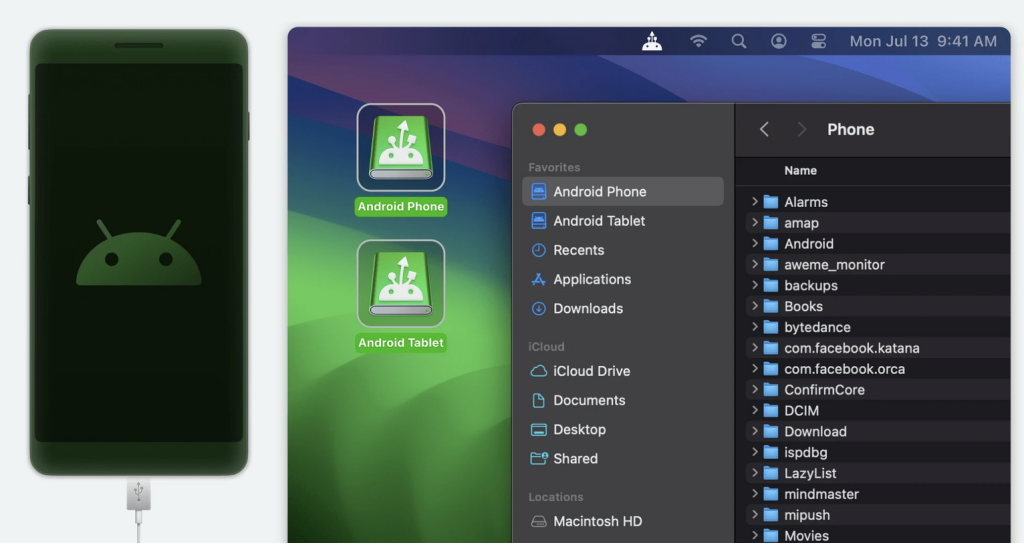
MacDroid integrates directly with Finder, which fundamentally changes the experience. Instead of using a separate file manager, your Fairphone appears like an external drive.
- Native Finder access
- Support for photos, videos, music, documents, and other common file types
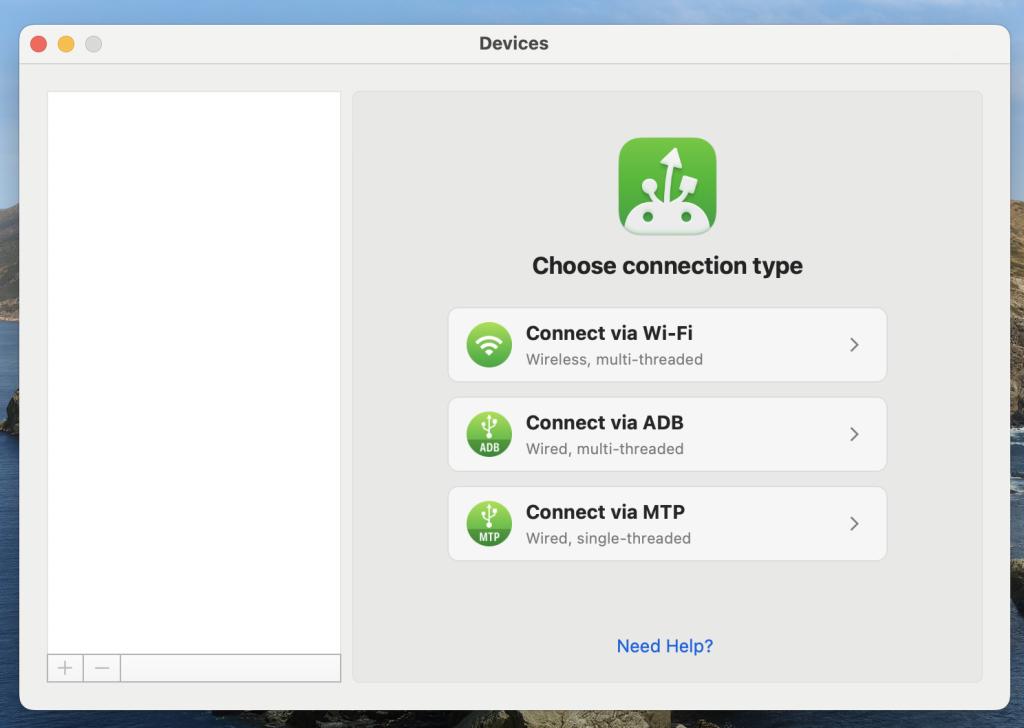
- USB and wireless (Wi-Fi) connection
- Stable handling of large files and folders
- Drag-and-drop transfers
- Access to internal storage and SD cards
- More polished UI and smoother navigation for large file libraries
- Allows Android devices to behave more like external drives on macOS
- Compatibility with modern Android devices, including Fairphone FP5 and FP6
This makes it the closest thing to a “plug-and-play” Android-to-Mac workflow.
How to Use MacDroid
1.Install MacDroid on your Mac
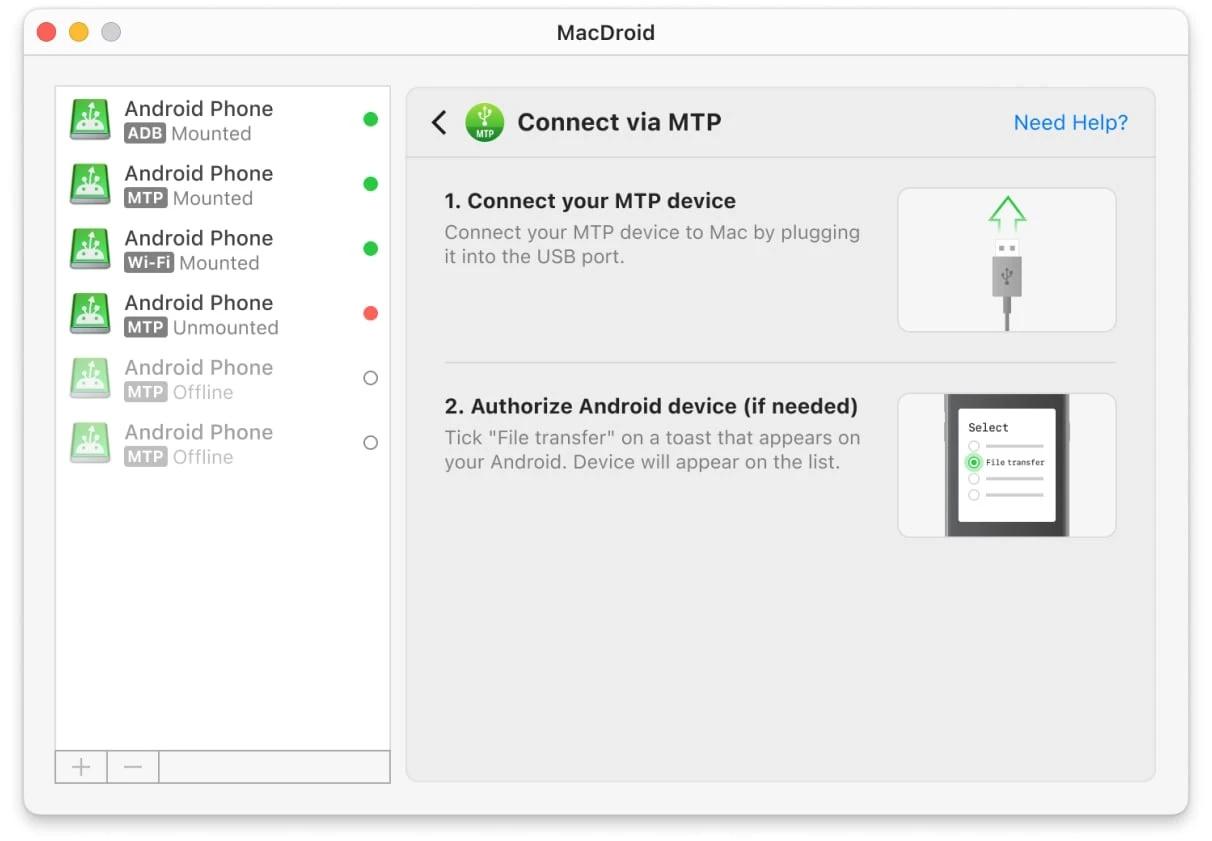
2. Connect your Fairphone (FP5 or FP6) via USB
3. Select “File Transfer” mode on the phone
4. Open MacDroid and mount the device
5. Access it directly in Finder
At this point, you can transfer files exactly like you would with a USB drive – drag, drop, move, or edit.
Real-World Testing Notes
On both FP5 and FP6:
- Finder integration worked consistently
- Large video transfers were stable
- Navigation felt faster than most MTP tools
- No major disconnect issues during testing
Where MacDroid Fits Best
- Ongoing workflows (not just one-time transfers)
- Managing large media libraries
- Users who want minimal friction
However, please note that this software is actively supported and has an App Store version, so there is a paid feature if you need to transfer files from a Mac to a smartphone. For regular use and stable app performance, it’s worth the cost. Otherwise, you can safely use the free version.
Another advantage is that the app receives regular updates and compatibility fixes for newer Android devices and macOS versions, which helps avoid the connection problems common with older transfer tools. During our testing on the FP5 and FP6, the experience remained stable even when transferring larger photo and video libraries.
Method 2: OpenMTP
What OpenMTP Offers
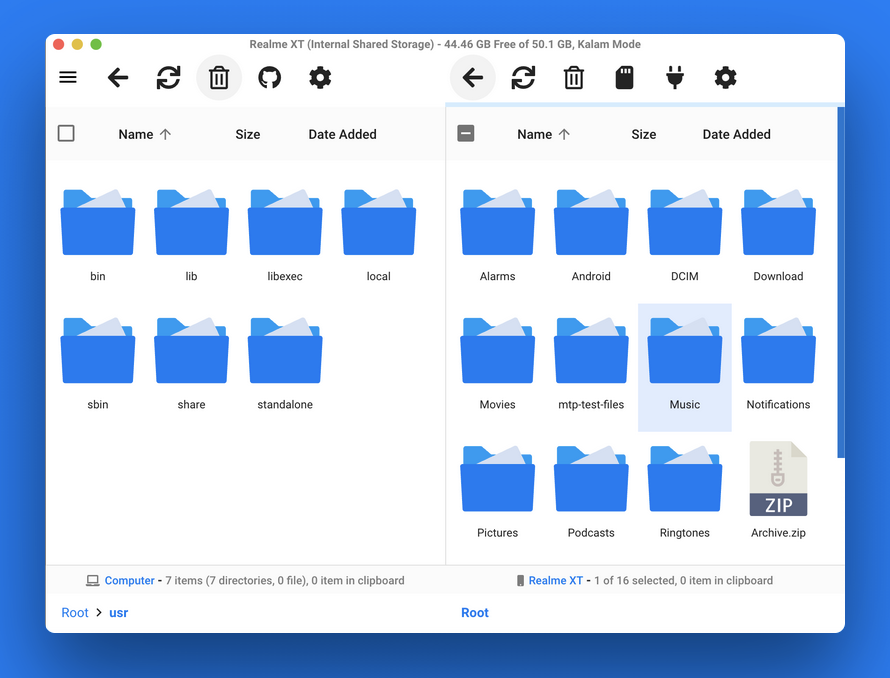
OpenMTP is a free, open-source tool designed specifically for Android file transfer on macOS. It uses a dual-pane interface – Mac on one side, Android on the other.
- Drag-and-drop transfers
- Access to internal storage and SD cards
- USB-only connection
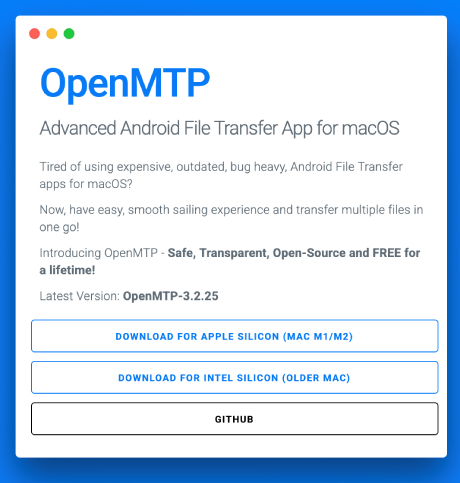
- Open-source
- Compatibility with modern Android devices, including Fairphone FP5 and FP6
- Support for photos, videos, music, documents, and other common file types
It’s simple and effective, especially if you only need occasional transfers.
How to Use OpenMTP
- Install OpenMTP
- Connect your Fairphone via USB
- Enable File Transfer (MTP) mode
- Launch OpenMTP
- Drag files between panels
You can quickly transfer files like photos, documents, or videos.
Real-World Testing Notes
- Stable USB connection on FP5/FP6
- Good transfer speeds
- Slight lag when browsing large directories
Limitations
- No Finder integration
- No wireless support
- Interface feels more technical
Please note that OpenMTP is an open-source solution. It is popular and useful, especially for free one-time transfers, but it may come with typical open-source downsides, including occasional bugs and inconsistent behavior across setups. Some users report connection problems, such as OpenMTP not recognizing their Android device or freezing during transfer. File transfers may also stop midway, especially with larger files, large folders, or specific file names. Compatibility can vary as well, so OpenMTP may not work equally well with every Android device or macOS version.
MacDroid vs OpenMTP (Practical Comparison)
The difference between these tools is mostly about workflow, not raw capability.
MacDroid is designed for continuous use. It integrates into Finder, supports both USB and wireless connections, and allows you to work with files directly without copying them first. This makes it better suited for users who regularly move or edit files between devices.
OpenMTP, in contrast, is more of a utility. It works well when you need to quickly move files from point A to point B, but it doesn’t integrate into the macOS environment. Everything happens inside its own window, and there’s no wireless option.
In terms of speed over USB, both perform similarly in real-world tests. The difference shows up in usability: MacDroid reduces friction, while OpenMTP keeps things minimal.
If you only occasionally need to transfer files, OpenMTP is sufficient. If file transfer is part of your daily workflow, MacDroid is the more efficient option.
Final Take
During testing on the Fairphone FP5 and FP6, both apps – MacDroid and OpenMTP – worked flawlessly, and each solution has its own advantages depending on your workflow and preferences.
OpenMTP offers a completely free, albeit not perfect, option for occasional data transfers, while MacDroid is more focused on integration with Finder and long-term usability on macOS. Ultimately, the best choice depends on your priorities, how often you transfer files, and which workflow is more convenient for you in everyday use.