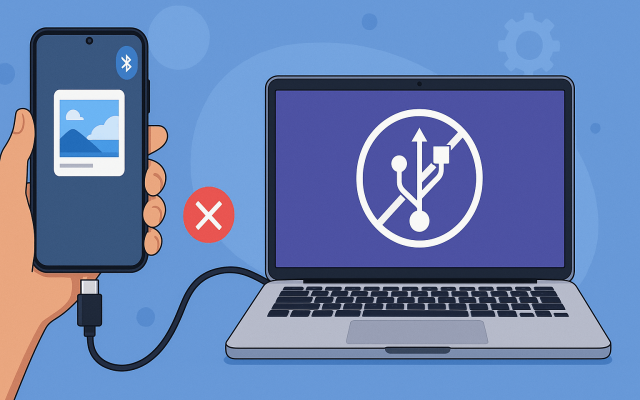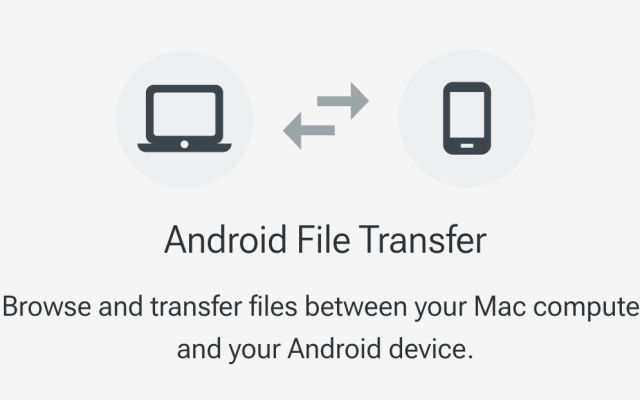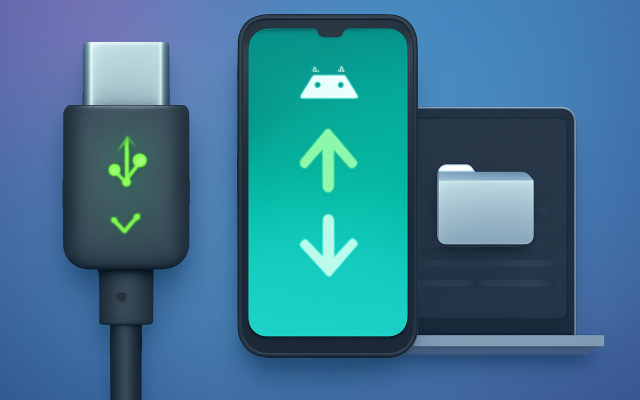
In 2026, transferring files between your Samsung device and a computer remains essential for many users. One of the most reliable methods is using Media Transfer Protocol (MTP) mode. This guide will walk you through enabling MTP mode on your Samsung device, ensuring smooth file transfers.
What is MTP and Why It Still Matters in 2026
MTP stands for Media Transfer Protocol. It’s a way for your phone to talk to a computer so you can move files like photos, music, and videos. It started as an extension to another protocol called PTP, which was for pictures. According to Wikipedia, “the main purpose of MTP is to facilitate communication between media devices with transient connection,” and it also lets you control the device. MTP became a standard in 2008 and was widely used in Android starting in 2011.
In 2026, MTP remains important because modern Galaxy devices capture larger files than ever before, including 200 MP photos, 8K videos, and AI-generated media. USB transfers are often significantly faster and more reliable than cloud uploads, especially when moving large amounts of data.
A user on Reddit said:
Samsung’s latest One UI 8 and Android 16 releases continue to use MTP as the primary USB file transfer protocol, but with additional security protections enabled by default.
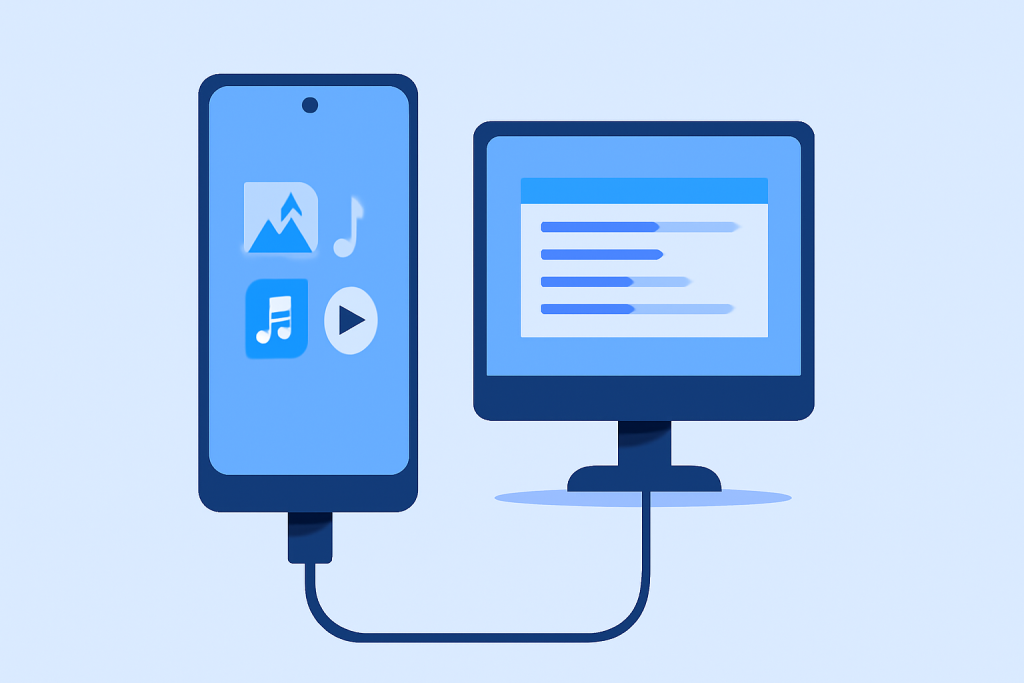
Why Use MTP Mode?
- Security: MTP ensures that your device’s system files remain protected during transfers.
- Efficiency: It allows for quick and organized file transfers between devices.
- Compatibility: Most modern computers and operating systems support MTP, making it a versatile choice. MacDroid website
How to Enable MTP Mode on Your Samsung Device
- Connect Your Device: Use a USB cable to connect your Samsung device to your computer.
- Unlock Your Device: Ensure your device is unlocked to facilitate the connection.
- Access USB Preferences:
- Swipe down from the top of your device’s screen to open the notification panel.
- Look for a notification that says “Charging this device via USB” or similar.
- Tap on this notification to open USB preferences.
4. Select MTP Mode:
- In the USB preferences menu, select “File Transfer” or “MTP” mode.
- This action will enable MTP mode, allowing your computer to access your device’s media files.
5. Access Files on Your Computer:
- On your computer, open “File Explorer” (Windows) or “Finder” (Mac).
- Your Samsung device should appear as a connected device, and you can browse and transfer files as needed.
Important Android 16 and One UI 8 Changes
Starting with Android 16 and One UI 8, Samsung devices often default to “Charging Only” mode when connected via USB. This is part of Samsung’s enhanced USB security system.
If your computer cannot detect the phone:
- Unlock the device.
- Disconnect and reconnect the cable.
- Open the USB notification.
- Manually select File Transfer (MTP).
How to Set File Transfer as the Default USB Mode
If your phone repeatedly switches back to Charging Only mode:
- Open Settings.
- Enable Developer Options.
- Go to Developer Options.
- Open Default USB Configuration.
- Select File Transfer.
This can save time if you frequently transfer files to a PC or Mac.
Troubleshooting Tips
- Device Not Recognized:
- Try using a different USB cable or port.
- Restart both your Samsung device and computer.
- Ensure that your device’s drivers are up to date. AirDroid website
- MTP Option Not Appearing:
If the MTP option doesn’t appear, ensure that USB debugging is enabled on your device. To do this:- Go to “Settings” > “About phone”.
- Tap on “Build number” seven times to unlock developer options.
- Navigate back to “Settings” > “Developer options” and enable “USB debugging”.
Alternatively, dialing *#0808# on your Samsung device can directly open the USB settings, allowing you to select MTP mode. Android Stack Exchange
Alternative Methods for File Transfer
If MTP mode isn’t suitable for your needs, consider these alternatives:
- Bluetooth: For transferring smaller files wirelessly.
- Cloud Services: Use platforms like Google Drive or Samsung Cloud to upload and access files remotely.
- Samsung Smart Switch: Ideal for transferring data between Samsung devices. PingFM
Conclusion
Enabling MTP mode on your Samsung device in 2026 is a straightforward process that facilitates secure and efficient file transfers. By following the steps outlined above, you can ensure seamless connectivity between your device and computer. Remember to troubleshoot common issues and explore alternative methods if necessary.
If you have any further questions or need assistance with specific models or operating systems, feel free to ask!