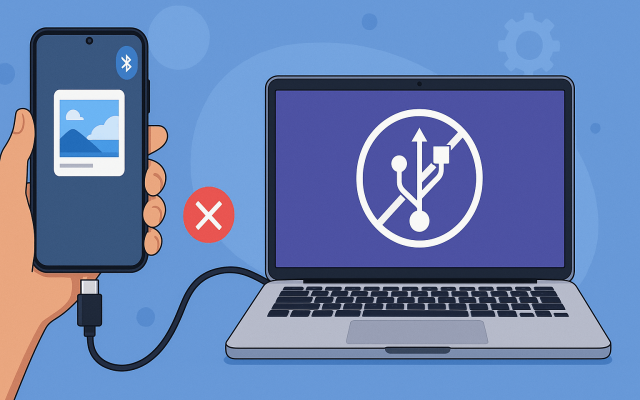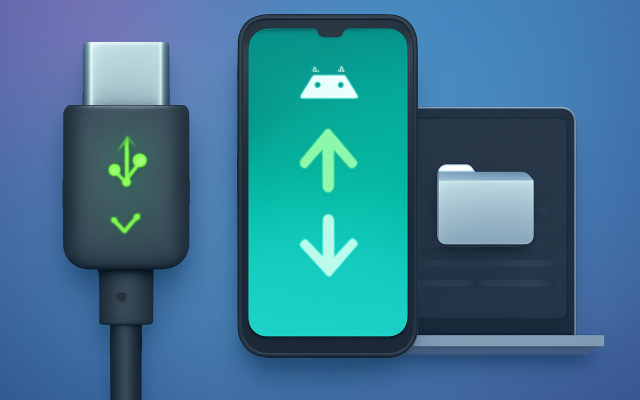
Encountering the “USB not recognized” error on your Mac can be frustrating. Whether you’re trying to connect a flash drive, external hard drive, or other peripherals, this issue can disrupt your workflow.
In 2026, users of macOS Tahoe 26 continue to report USB detection issues, particularly after major system updates or when connecting Android devices running Android 16. New USB security features, Apple Silicon compatibility changes, and the widespread use of USB-C accessories have introduced additional factors that can affect device recognition.
Fortunately, there are several troubleshooting steps you can take to identify the cause and restore a stable USB connection on your Mac.
1. Check System Settings for Accessory Permissions
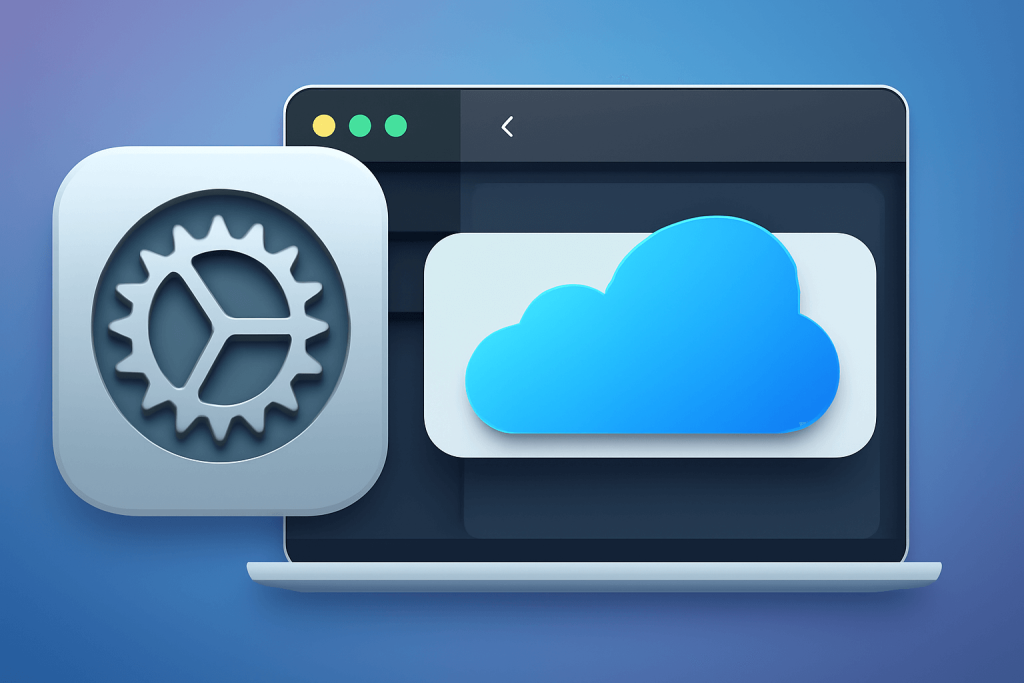
macOS Tahoe introduced stricter security measures regarding external accessories. If your Mac isn’t recognizing a USB device, it might be due to these new settings. Navigate to System Settings > Privacy & Security > Allow accessories to connect and set it to “Always Ask”. This setting prompts you each time a new accessory is connected, allowing you to grant permission. Some users have found this adjustment effective in resolving recognition issues.
2. Inspect Hardware Connections
Before diving into software solutions, ensure that all physical connections are secure. Try the following:
- Use a different USB port on your Mac.
- Test the USB device on another computer to rule out device failure.
- Replace the USB cable if possible.
- Avoid using USB hubs, especially unpowered ones, as they may not supply sufficient power to the device.
If the device works on another computer but not on your Mac, the issue might be software-related.
3. Update macOS and Reset System Components
Software bugs can cause USB recognition issues. Ensure your macOS is up to date by going to System Settings > General > Software Update. Additionally, resetting certain system components can help: ideallast
- Reset NVRAM/PRAM: Shut down your Mac, then turn it on and immediately press and hold Option + Command + P + R for about 20 seconds.
- Reset SMC (System Management Controller): For Intel-based Macs, shut down your Mac, unplug it, wait 15 seconds, plug it back in, and wait another 5 seconds before turning it on.
These resets can resolve various hardware-related issues, including USB problems.
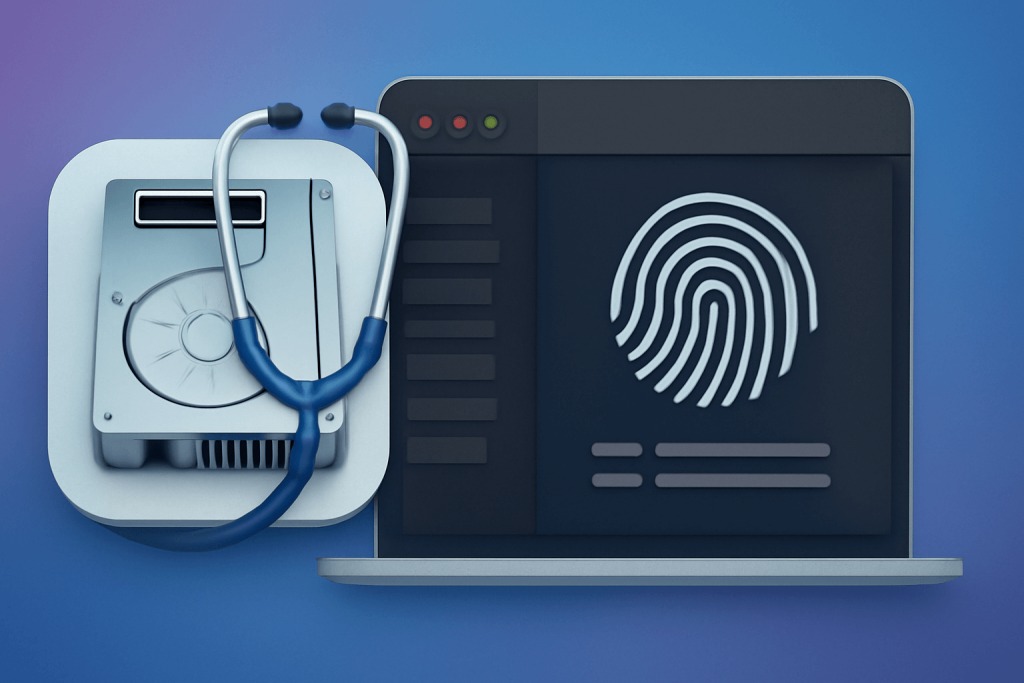
4. Check Disk Utility and System Information
If your USB device isn’t appearing in Finder, check if it’s recognized at a system level: Apple Discussions
- Open Disk Utility (Applications > Utilities) and see if the device is listed.
- Go to Apple Menu > About This Mac > System Report > USB to check if the device appears there.
If the device shows up in these utilities but not in Finder, the issue might be with Finder settings. Go to Finder > Preferences > Sidebar and ensure External disks is checked. Apple Discussions
5. Address Power Supply Issues
Some USB devices, especially external hard drives, require more power than what a Mac’s USB port can provide. If you’re seeing a message like “USB Devices Disabled” or “Accessory needs power,” consider the following: Apple Support
- Connect the device directly to your Mac rather than through a hub.
- Use a powered USB hub that supplies its own power.
- Ensure the device has its own power source if applicable.
These steps can help ensure your device receives adequate power for operation.
6. Test in Safe Mode
Booting your Mac in Safe Mode can help determine if background processes are causing the issue:
- Shut down your Mac.
- Turn it on and immediately press and hold the Shift key until you see the login window.
- Log in (you might need to log in twice).
In Safe Mode, only essential system processes run, which can help identify if third-party software is interfering with USB functionality.
7. Consider Hardware Issues
If none of the above steps resolve the problem, there might be a hardware issue with your Mac’s USB ports or logic board. For instance, some users have reported that after updating to macOS Ventura, certain USB ports became non-functional. In such cases, contacting Apple Support or visiting an authorized service provider is recommended. Apple Discussions
Conclusion
USB recognition issues on Macs can stem from various factors, including software settings, hardware connections, and power requirements. By systematically checking each potential cause, you can often identify and resolve the problem. If the issue persists, seeking professional assistance is advisable to prevent further complications.