If you’ve ever searched for a quick way to send files from your Android phone to your Mac, you’ve probably come across PairDrop. No cables, no sign-up, no app install — just open a browser and send. It sounds almost too simple. And that simplicity is exactly what makes people stop and ask: is PairDrop actually safe to use?
It’s a fair question. Let’s go through what PairDrop is, how it handles your files, where the real risks are, and what safer options exist.
What Is PairDrop?
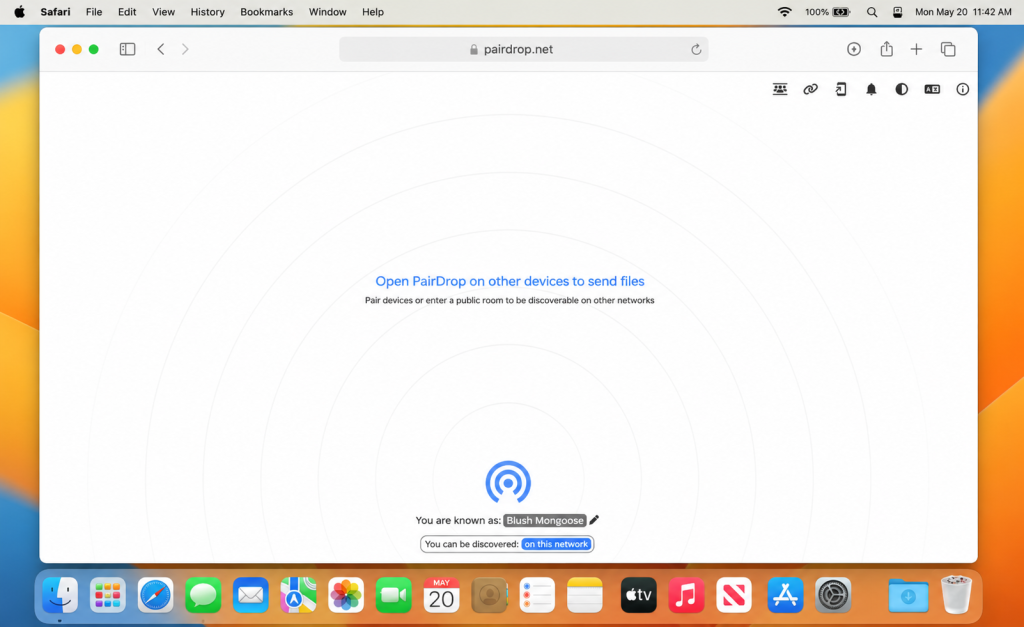
PairDrop is a free, open-source, browser-based tool for transferring files between devices. You open pairdrop.net on two devices — say, your Mac and your Android phone — and if they’re on the same Wi-Fi network, they find each other automatically. Then you drag and drop a file and send it.
No account. No app. No cloud storage. The file goes directly from one device to the other using a technology called WebRTC, which creates an encrypted peer-to-peer connection in the browser.
PairDrop works across all major platforms — Mac, Windows, Linux, Android, iOS — which makes it one of the few tools that lets these different systems talk to each other without any setup.
For quick transfers on a home or trusted office network, it’s a genuinely useful tool. But “safe” is a more complicated question than it first appears.
Is PairDrop Safe? The Honest Answer
The short answer is: mostly yes, but with some important conditions.
What PairDrop does well on security:
PairDrop uses WebRTC, which encrypts your files while they’re in transit using DTLS encryption. When both devices are on the same local network, your files never touch any external server — they go directly from your phone to your Mac. The code is fully open source, which means anyone can read it and verify what it actually does.
Security scanning tools give pairdrop.net a solid rating. As of early 2026, independent analysis found no malware, no phishing threats, and no dark web exposure linked to the domain.
Where the safety picture gets more complicated:
The PairDrop developers themselves are transparent about one limitation. Their own FAQ states: “Your files are sent using WebRTC, encrypting them in transit. Still, you have to trust the PairDrop server.” The signaling server — which helps devices find each other — is a point of trust that users can’t fully verify unless they host their own instance.
There’s also a cybersquatting problem worth knowing about. Security researchers have found over a dozen fake domains that closely mimic PairDrop’s name — domains like pairdrop.app, pairdrop.cloud, and various typo variations like pairrop.net or pardrop.com. If you land on one of these instead of the real pairdrop.net, you may not be using the legitimate service.
And on Privacy Guides — a respected community focused on digital privacy — users have raised questions about PairDrop’s security directly. One user asked plainly: “Is it still un-secure?” The discussion reflects a genuine uncertainty that even privacy-conscious users feel about the tool.
The public network problem:
On a home Wi-Fi network, PairDrop is reasonably safe. On a public network — a café, an airport, a hotel — it’s a different story. In public mode, your device becomes visible to every other PairDrop user on the same network. Anyone nearby using PairDrop can see your device name and attempt to send you files. If you accidentally accept a transfer from a stranger, you could receive malicious content.
This isn’t a bug. It’s how the tool is designed to work. But it’s a real risk that many users don’t know about.
Common PairDrop Errors Between Mac and Android
Even if you’re comfortable with the security trade-offs, PairDrop has practical reliability problems — especially between Mac and Android.
Devices don’t find each other. This is the most reported issue. Both devices are on the same network, PairDrop is open in the browser on both — and nothing appears. Many routers block the multicast traffic that PairDrop uses for device discovery, especially in offices, apartment buildings, or anywhere with a more managed network setup.
macOS firewall blocks the connection. Mac’s built-in firewall often stops PairDrop from accepting incoming connections. Fixing this requires going into System Settings and manually allowing the connection — and even then, some users report it still doesn’t work reliably.
Transfer drops midway. Start sending a large video file and PairDrop may stall or fail completely. Browser-based tools aren’t designed for heavy transfers, and large files push them to their limits.
No way to resume a failed transfer. If a transfer fails halfway through, you start from scratch. There’s no resume function.
App goes to sleep on Android. Android limits background activity to save battery. If PairDrop isn’t actively in the foreground on your phone, it can stop responding — which looks like the device has disappeared from the network.
Version and browser mismatches. PairDrop works best in Chrome. Older browsers, some Android browsers, or version mismatches between devices can cause “handshake failed” errors where devices can see each other but can’t complete a transfer.
Online Alternatives to PairDrop
If you want to stay with wireless transfers but need something more reliable, two tools stand out.
LocalSend
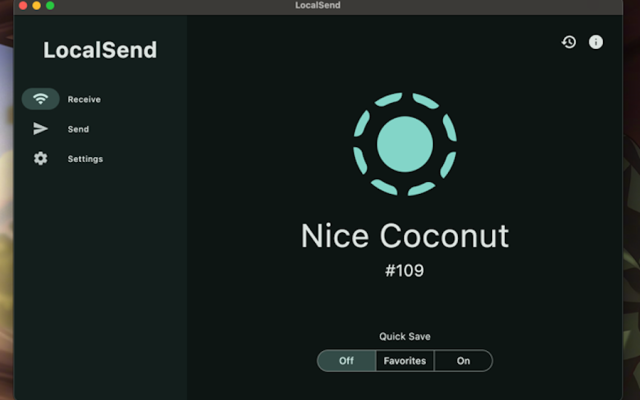
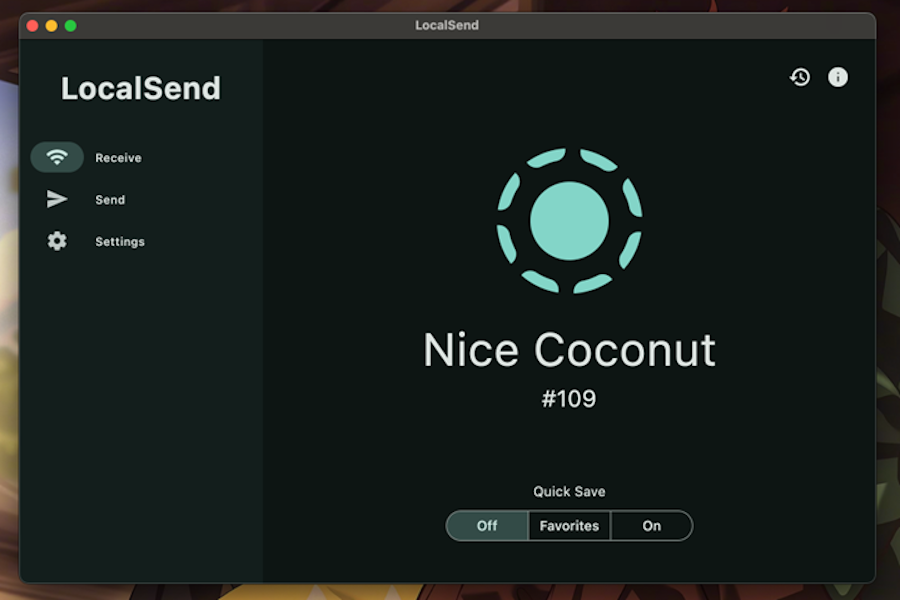
LocalSend is a free, open-source app that works on Mac, Windows, Linux, Android, and iOS. Unlike PairDrop, it’s a real installed app — not just a browser tab — which makes it more stable and less affected by browser compatibility issues.
It works on the same principle: both devices need to be on the same Wi-Fi network, they find each other automatically, and you send files directly between them without any cloud upload. LocalSend also uses TLS encryption for transfers and doesn’t require an account.
The main advantage over PairDrop is reliability. Because it runs as a native app rather than in a browser, it handles larger files better and doesn’t go to sleep as easily. It’s a solid step up for users who find PairDrop too inconsistent.
Send Anywhere
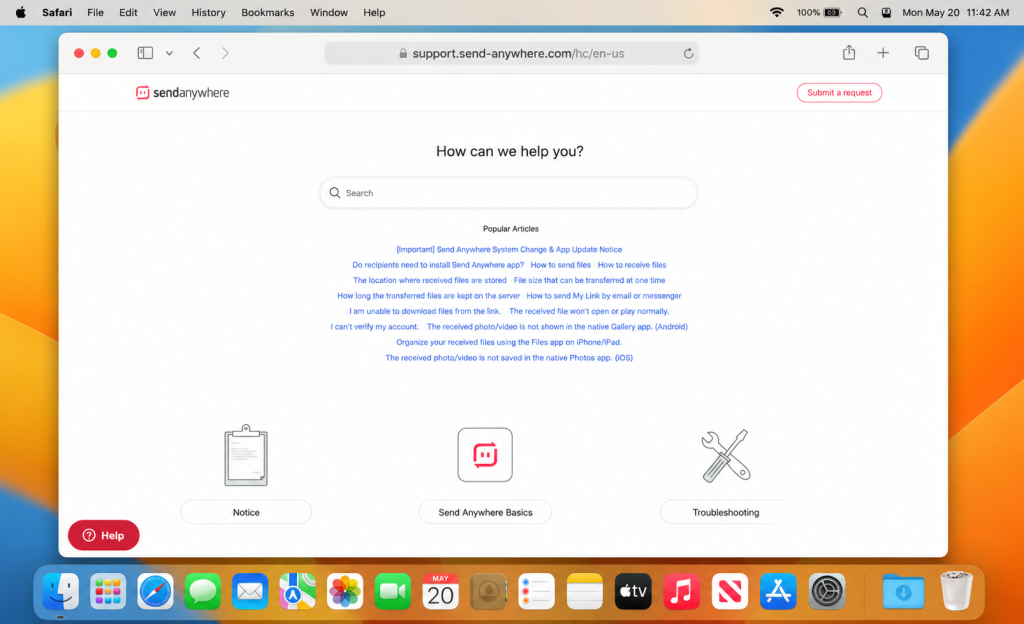
Send Anywhere solves the discovery problem differently. You don’t need both devices on the same network — you just generate a one-time code on the sending device and type it in on the other end. The transfer starts, whether the devices are in the same room or on different continents.
This approach works well in places where PairDrop and LocalSend struggle most: office networks, mobile hotspots, or any situation where two devices simply can’t see each other over Wi-Fi. Both Mac and Android have dedicated apps, which keeps things more stable than a browser-based tool. The free version covers most everyday transfers; heavier use requires a paid plan.
Why USB Is the Safer, More Reliable Option
Here’s what all wireless transfer tools — PairDrop, Snapdrop, Send Anywhere — have in common: they depend on network conditions, browser compatibility, router settings, and in some cases, third-party servers.
USB has none of these dependencies. Plug in the cable and the connection is direct. Your files don’t travel through any network, any browser, or any server. They go from your Android phone to your Mac, and nowhere else.
From a security standpoint, USB is clearly better. There’s no risk of a stranger on a public network seeing your device. There’s no server to trust. There’s no encrypted-but-still-networked connection to worry about. The file moves through a physical cable between two devices you own and control.
USB transfers are also faster and more reliable for large files. A USB 3.0 connection is significantly faster than most Wi-Fi transfers, and it doesn’t drop or stall midway through a 4GB video.
The one catch is that macOS doesn’t support Android’s file transfer protocol (MTP) by default. Plug your Android phone into a Mac and the Mac won’t know what to do with it. You need an app to make that connection work.
MacDroid
If security is the reason you’re looking for a PairDrop alternative, MacDroid is the answer that makes the most sense.
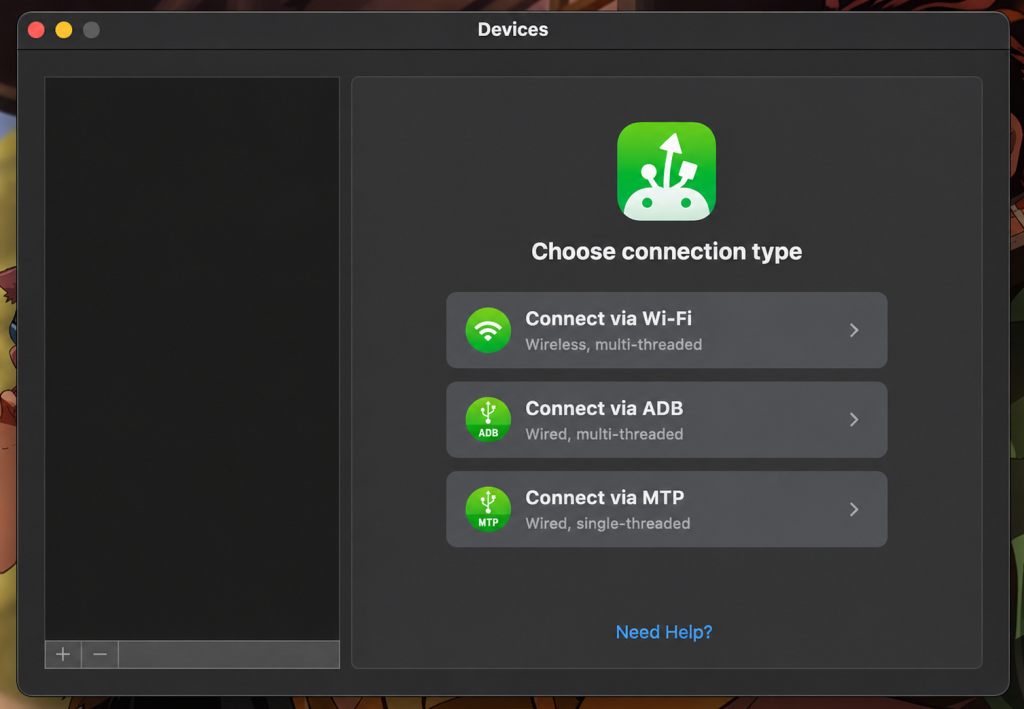
When you transfer files with PairDrop, your data travels over a Wi-Fi network, passes through a signaling server, and depends on browser security. With MacDroid, none of that happens. You plug in a USB cable, your Android phone appears in Finder — right alongside your other drives — and you move files directly from one device to the other. No network involved. No server in the middle. No browser to trust.
That’s the core security argument for MacDroid: the transfer path is as short as it can possibly be. Your files go from your phone to your Mac through a physical cable, and nowhere else. There’s no risk of someone on a public network spotting your device. There’s no fake lookalike domain to accidentally land on. There’s no third-party infrastructure handling your data at any point.
Beyond security, MacDroid is simply more reliable. It handles large files — videos, photo libraries, full folders — without stalling or dropping the connection. It gives you full access in both directions, so you can copy files onto your Android device just as easily as pulling them off. And because it works completely offline, it doesn’t matter whether you have Wi-Fi, a stable connection, or any network at all.
For anyone moving sensitive files — work documents, personal photos, anything you’d rather not send through a server — MacDroid is the most private and controlled way to do it.
Conclusion
So, is PairDrop safe? On a home network, for non-sensitive files, with a little awareness of how it works — yes, it’s reasonably safe. The encryption is real, the code is open source, and your files don’t go through external servers when you’re on a local network.
But the full picture is more nuanced. On public networks, PairDrop exposes your device to strangers. The signaling server requires trust. Fake lookalike domains exist and are easy to stumble onto. And the reliability problems — devices not connecting, transfers failing, browser quirks — add up quickly when you need the tool to actually work.
For occasional, low-stakes transfers on a trusted network, PairDrop is a convenient option. For anything more than that — sensitive files, large transfers, or regular use — a USB connection is often the more reliable choice.
MacDroid takes the hassle out of transferring files between Mac and Android with seamless Finder integration, full read-write access, and a polished experience that feels like a native part of macOS.
No public network exposure. No servers to trust. No browser to fight with. Just a cable, MacDroid, and file transfers that simply work.