Transferring files between Android and Mac should be simple: connect, choose the files, move them, and get back to work. In practice, many users end up testing wireless tools, browser-based services, cloud uploads, and old utilities before finding a stable workflow.
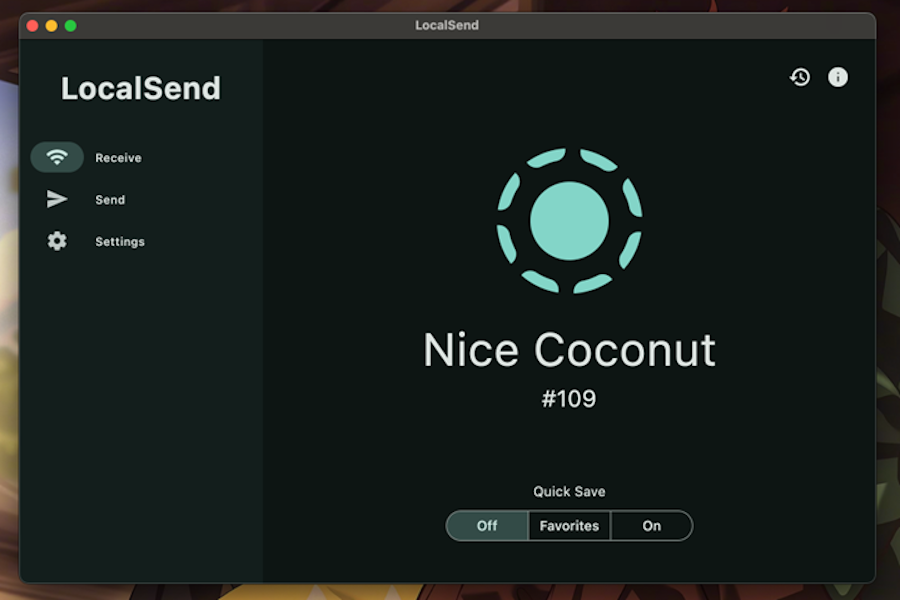
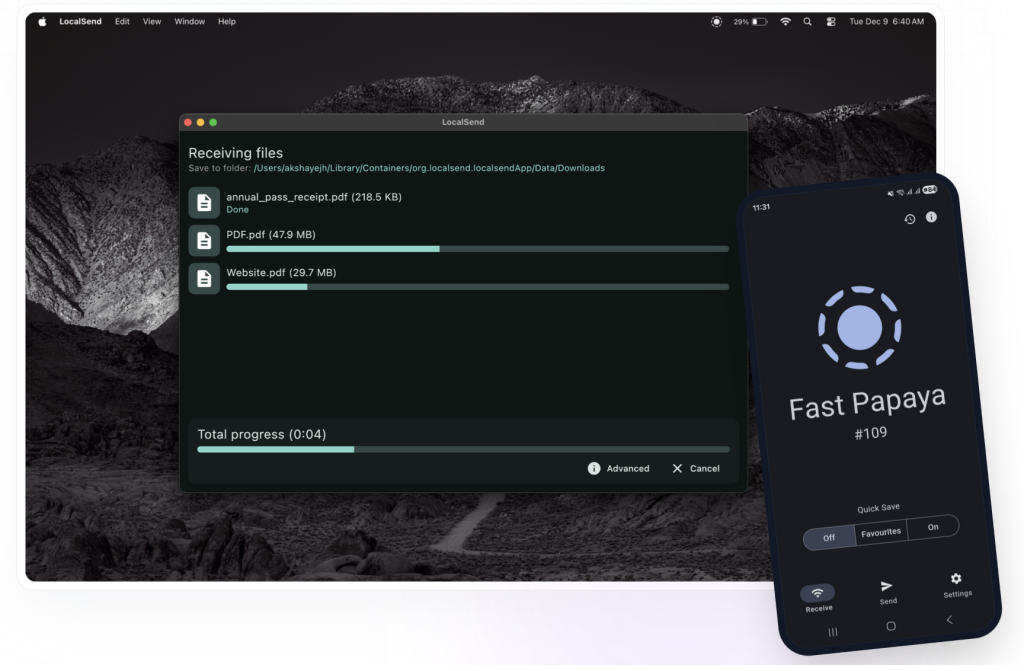
LocalSend is a popular open-source file-sharing app, and for many quick transfers it works well. It is free, cross-platform, and designed to send files over a local network without routing data through the internet. The official LocalSend site states that it uses the local Wi-Fi network and keeps data within the local network.
File transfer methods and wireless options are great for sending a single photo or a small document. But when I need to transfer an entire folder of videos, export media files from my phone, or avoid failed transfer attempts, I prefer using a cable. This eliminates most network-related issues and provides a more reliable connection.
Why Look for a LocalSend Alternative?
LocalSend is a useful app, but it depends on a few conditions being right at the same time. Both devices need to discover each other correctly, remain on the same network, and complete the transfer without network interruption. LocalSend’s own troubleshooting guidance notes that devices must be on the same Wi-Fi network and may require router settings that allow communication between network participants.
Common reasons include:
- Different Wi-Fi bands or SSIDs
- Router isolation settings
- VPN or firewall interference
- Mobile hotspot limitations
- Local network permission issues
- Sleep mode or battery optimization
- Large files timing out or failing midway
LocalSend is not necessarily the problem in every case. Often the issue is the network environment. But from the user’s point of view, the result is the same: the transfer does not complete.
Why Browser-Based and Wi-Fi Transfers Can Be Risky
When users look for a LocalSend alternative, they often find browser-based tools, cloud upload pages, or web transfer services. These can be convenient, but they are not always ideal for large or important files.
Browser-based transfers usually depend on either an internet connection, a web session, or a temporary upload/download process. If the browser tab freezes, the internet drops, the upload times out, or the service interrupts the session, you may need to start again. That is frustrating when you are moving several gigabytes of photos, videos, or project files.
LocalSend is different because it is designed for local-network transfer rather than internet transfer. However, it still depends on Wi-Fi stability. If your router is slow, your devices are on different network segments, or the connection drops, transfer speed and reliability can suffer.
That is why a wired transfer is still the most practical option for many Android-to-Mac users. A USB cable does not depend on router discovery, browser sessions, or Wi-Fi quality. You connect the phone directly to the Mac and transfer files through a dedicated app.
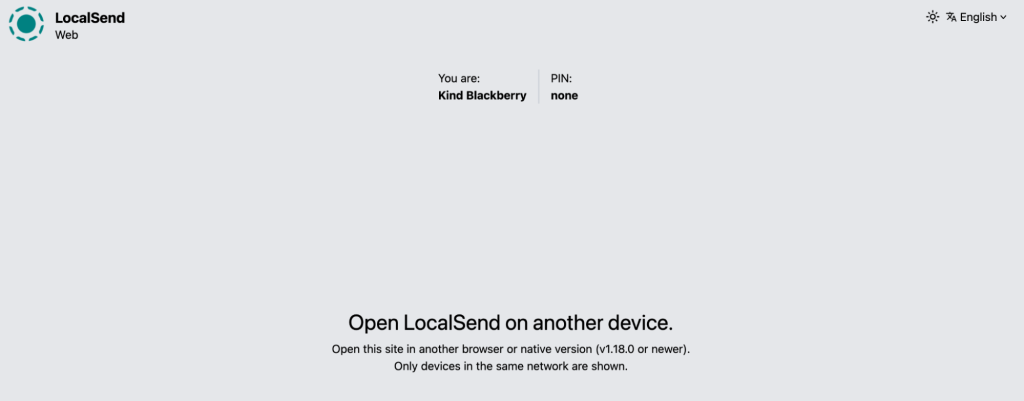
Common LocalSend Errors and Limitations Users Report
LocalSend has an active user community, which is a strength. It also means you can find real-world reports about common problems.
LocalSend not finding device
Device discovery is one of the most common wireless-transfer issues. LocalSend requires devices to be on the same local network, and its troubleshooting discussion points to router configuration, multicast settings, ports, encryption, and network participant communication as possible causes when devices cannot discover each other.
For users, this often appears as “my Mac does not see my phone” or “my phone cannot find my computer.” Another detail to check is the version you are using on each device. If you open the LocalSend web version on one device and use the installed app on another, the devices may behave differently because they are not running the same release.
In some cases, the web version may receive updates faster than the desktop or mobile app, so discovery or connection behavior can differ between platforms. If LocalSend is not finding your device, make sure both devices are updated and, where possible, use the same app version rather than mixing the web version with an older installed app.
Waiting for response
A “waiting for response” situation usually means the sending device has found the receiver, but the transfer is not accepted or completed. This may happen because of permission prompts, firewall rules, app state, or network instability.
LocalSend error 500
There are GitHub reports of LocalSend transfers failing with status code 500, including recent cases where users describe failed transfers between PC and phone or Windows and iPhone.
This does not mean every user will see error 500. It simply shows that this type of failure exists in real-world usage.
File size limit and large file issues
LocalSend does not position itself as a tool with a simple universal file size limit, but users moving large files can still run into failures. One GitHub issue describes errors when transferring multiple large files from an iPad to a PC, including files around 2 GB each.
Here is also a limit on how many media files you can upload at once. If you have been saving photos on your phone for several years, you may not be able to move the entire library in one attempt. For example, if you have thousands of photos, you will need to split the transfer into batches of up to 999 media files at a time.
Large file transfers are where a USB connection usually feels more dependable.
Transfer speed
Transfer speed depends heavily on the network. A Reddit user reported LocalSend speeds around 500 – 800 kB/s while transferring 6 GB of photos and videos, even though other users reported much higher speeds.
That variation is normal for Wi-Fi-based transfers. Router quality, signal strength, device hardware, encryption, and network congestion can all affect performance.
LocalSend without Wi-Fi
LocalSend is built around local network transfer. The official site says it uses the local Wi-Fi network, and a GitHub feature request notes that LocalSend does not support Wi-Fi Direct in the way some users expect.
So if you want a reliable “without Wi-Fi” method for Android-to-Mac transfer, USB is the cleaner answer.
Best LocalSend Alternative for Android and Mac: USB File Transfer Apps
One of the most practical alternatives to LocalSend is using a dedicated Android-to-Mac file transfer app, especially if you want to avoid browser sessions, Wi-Fi discovery issues, or unstable wireless transfers. Instead of sending files over the local network, these tools let you connect your Android device directly to your Mac and manage files through a more controlled connection.
There are several options in this category. The Android File Transfer app used to be the standard solution for transferring files from Android to Mac.
The problem is that Android File Transfer is no longer a reliable recommendation. Google hid the Android File Transfer app from the official Android website in 2024, according to 9to5Google. A Google support thread also states that Android File Transfer is no longer available from Google and has been deprecated.
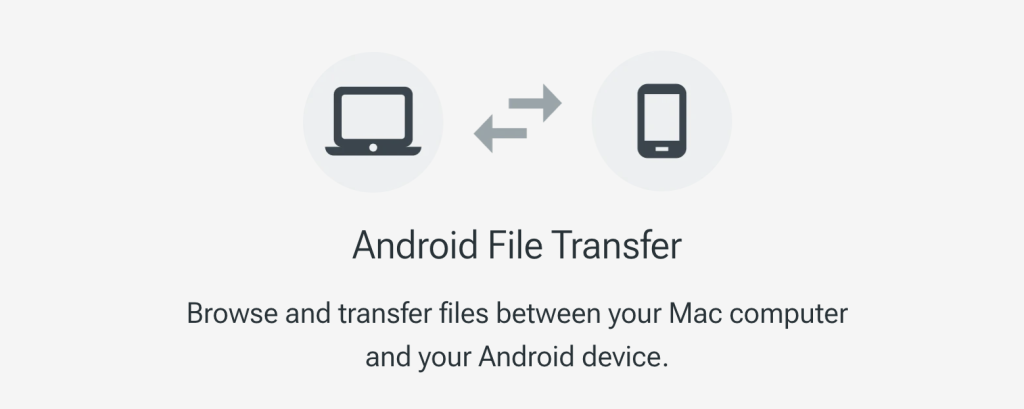
So while AFT may still work for users who already have it installed, it is not the best option for new users. It is outdated, not actively presented as the current official solution, and can be unreliable on newer macOS and Android setups.
OpenMTP is another alternative – it is an open-source project and can work well for basic file transfers, although some users may find it less polished depending on their device and macOS version.
MacDroid is a more complete option because it supports both USB and Wi-Fi connections, giving users more flexibility depending on how they prefer to transfer files.
Let’s take a look at MacDroid
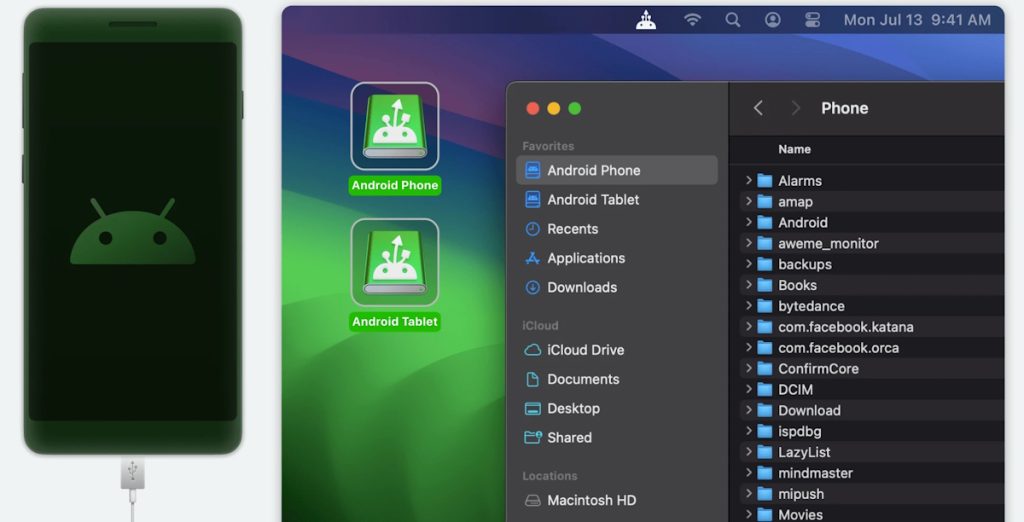
For Mac users, MacDroid is one of the most practical LocalSend alternatives because it is built specifically for transferring files between Android and macOS. The app supports USB-based transfer via MTP and ADB modes, as well as wireless connection options.
MacDroid is useful because it solves a specific Android-to-Mac problem: macOS does not mount most Android phones as standard external drives by default. That means users need a bridge to browse, copy, and manage files between the two systems.
With MacDroid, you can:
- Connect Android to Mac with a USB cable
- Transfer photos, videos, music, folders, and documents
- Use MTP mode for standard file transfer
- Use ADB mode for smoother advanced access
- Transfer files over Wi-Fi when a cable is not convenient
- Manage Android files from the Mac interface
- Avoid browser uploads and unstable web-based transfer sessions
MacDroid on the Mac App Store.
LocalSend vs MacDroid: Which One Should You Use?
LocalSend and MacDroid solve related but different problems.
Choose LocalSend when:
- You want to send small files between nearby devices
- Both devices are already on the same Wi-Fi network
- You need cross-platform sharing between different operating systems
- You prefer open-source tools
- Occasional transfer failure is not a serious problem
Choose MacDroid when:
- You need Android-to-Mac file transfer specifically
- You want to move large files or folders
- You prefer USB stability
- Wi-Fi discovery is unreliable
- You do not want to use browser-based transfer tools
For everyday Mac users, the key advantage is predictability. A cable-based transfer may feel old-fashioned, but it is often faster to troubleshoot: if the phone is unlocked, the USB mode is correct, and the cable works, you can transfer files without dealing with router settings.
Final Thoughts
LocalSend can be a convenient option for quick wireless file transfers, especially when both devices are on the same local network and the connection is stable. At the same time, we’ve covered the main pros and cons, including possible issues with device discovery, transfer speed, large files, Wi-Fi dependence, and interrupted sessions.
For Android-to-Mac transfers, MacDroid offers a different approach by using a direct USB connection, which may be more practical if you regularly move large files or prefer not to rely on Wi-Fi. Android File Transfer was once another common option, but it is no longer actively supported, so it may not be the best choice for new users.
Ultimately, the right app depends on your workflow. LocalSend may be enough for occasional wireless transfers, while MacDroid may be better suited for users who need a more stable Android-to-Mac file transfer method. We’ve outlined the key differences — now it’s up to you to decide which solution fits your needs best.