You’ve got a big video file, a full photo library, or a folder of work documents sitting on your Android phone. You want them on your Mac. You open LocalSend, select the files — and then nothing goes right. The transfer stalls, the app slows to a crawl, or it shuts down completely before the job is done.
If this sounds familiar, you’re not alone. LocalSend is a genuinely useful tool, but large files expose its limits quickly. This article explains what those limits are, why they happen, and what actually works when you need to move big files between Mac and Android.
What Is LocalSend?
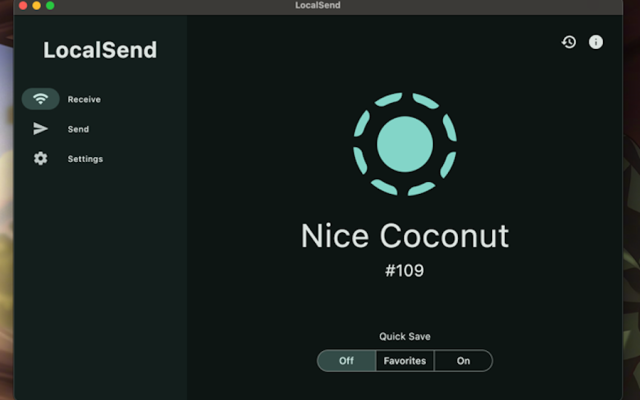
LocalSend is a free, open-source file transfer app that works across Mac, Windows, Linux, Android, and iOS. The idea is simple: install it on two devices, connect them to the same Wi-Fi network, and send files directly between them. No account, no cloud storage, no data going through anyone else’s server.
It’s one of the better tools for cross-platform wireless transfers — and for small files, it usually delivers. The problems start when files get bigger.
Does LocalSend Have a File Size Limit?
Officially, no. The LocalSend developers have stated that the protocol itself has no built-in file size cap. In their own words on GitHub: “Technically, there is no limitation in the protocol. I have seen someone transferring multiple GBs. But some users have issues with large files.”
That last sentence is doing a lot of work. In practice, large file transfers in LocalSend are unreliable — not because of a hard limit, but because of how the app handles the load. And for Mac-to-Android transfers specifically, the real-world experience is often frustrating.
What Actually Goes Wrong With Large Files in LocalSend
The GitHub issue tracker for LocalSend tells a clear story. Here are the problems users run into most often:
The app crashes on files over 5GB. This is one of the most reported bugs. One user described it directly: “The program shuts down automatically when the file gets too big. I tried a compression package of about 5.5 gigabytes and did a flash back.” The issue was confirmed: files larger than 5GB triggered crashes in certain versions of the app. While some of these bugs have been patched in updates, users continue to report similar behaviour.
Severe loading delays before the transfer even starts. When you select a large file in LocalSend, the app needs time to prepare it — and for files above 5GB, that preparation phase can take so long it feels like the app has frozen. One user on GitHub noted extensive loading times when trying to send files over 5GB, while similar apps handled the same task with minimal delay.
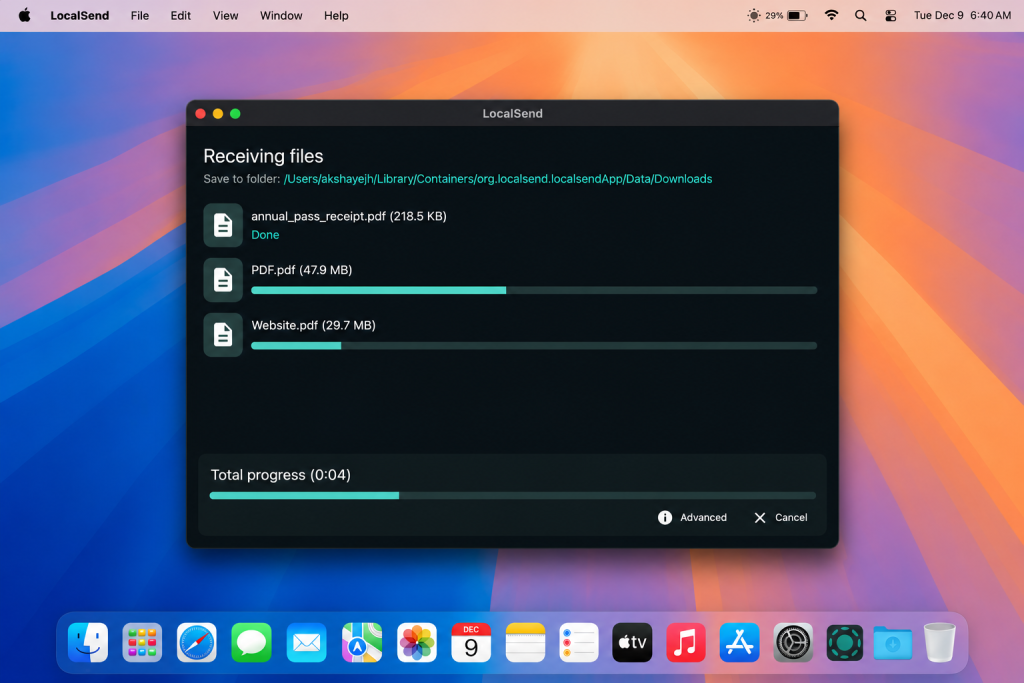
Transfer speed drops off over time. This one is particularly frustrating for large batches of files. A user transferring 7,000 images from Android reported that after 100 files, the speed was around 1 MB/s. After 500 files, it dropped to 600 KB/s. After 1,000 files, it was down to 80 KB/s — effectively unusable. The same user found that zipping everything into one archive gave a steady 4 MB/s. The problem is how LocalSend handles many individual files, not the total data size.
The UI freezes during large transfers. Another reported issue: when receiving a large number of files, LocalSend’s interface slows down dramatically — or stops responding entirely. One user described a transfer of 8,100 files where the app consumed 100% of a CPU core and the transfer speed dropped to almost nothing. At 4,000 files, the slowdown was noticeable but manageable. At 8,000, it was unusable.
Speed is low even when everything “works”. Even on a fast 5GHz Wi-Fi network, LocalSend averages around 20 MB/s for large files. Users on GitHub have pointed out that other methods — FTP, for example — reach 50–100 MB/s on the same hardware and network. For a 10GB transfer, that difference is the gap between a few minutes and half an hour.
Android storage restrictions slow things further. When transferring to an Android device, LocalSend is subject to Android’s Storage Access Framework — a system-level limitation that controls how apps write files to storage. This cap is outside LocalSend’s control, but it’s one of the reasons Mac-to-Android transfers are often slower than Android-to-Mac.
Why USB Is the Better Option for Large Files
Every problem listed above comes from the same source: LocalSend is a Wi-Fi tool, and Wi-Fi has limits when it comes to large, sustained transfers.
A USB cable doesn’t. When you connect your Android phone to your Mac with a cable, you get a direct, stable connection that doesn’t depend on router performance, network congestion, or Wi-Fi band selection. USB 3.0 transfers can reach speeds several times higher than LocalSend’s Wi-Fi average — and they stay consistent from the first gigabyte to the last.
There’s also a reliability argument. With LocalSend, a dropped Wi-Fi connection or an Android screen timeout can interrupt a transfer. USB keeps going regardless of what the network is doing or whether your phone’s screen is on.
And for large files especially, there’s a privacy argument too. When files travel over Wi-Fi — even an encrypted local connection — they’re moving through a shared medium. Over USB, they move through a physical cable between two devices you own. Nothing else is involved.
The catch is that Mac doesn’t support Android’s file system protocol (MTP) out of the box. Plug your phone in and the Mac won’t know what to do with it. That’s where dedicated apps come in.
MacDroid — Built for This
MacDroid is the more polished solution, and for large file transfers between Mac and Android, it’s the one that makes the most difference.
The key thing MacDroid does differently is how it integrates with your Mac. When you plug in your Android phone, it appears directly in Finder — the same place your external hard drives and USB sticks show up. You don’t open a separate app or learn a new interface. You just see your phone in the sidebar and start dragging files.
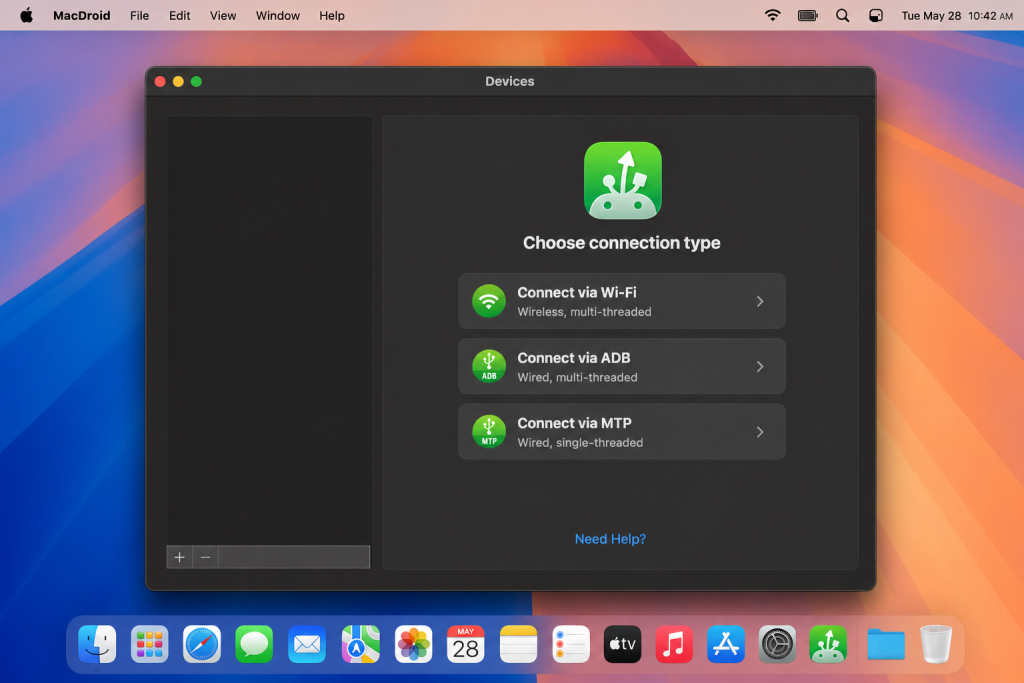
For large transfers, this matters more than it might seem. Because MacDroid works through Finder, it uses the same underlying file management system your Mac uses for everything else. That means it’s stable under load — no UI freezes, no speed degradation after a few hundred files, no crashes when the file size crosses a threshold.
Speed is consistent. Unlike LocalSend’s gradual slowdown over long transfers, MacDroid maintains steady speeds throughout. Whether you’re moving one 10GB video or a folder of thousands of photos, the connection stays stable from start to finish.
Full access in both directions. You can move files onto your Android device as easily as pulling them off. This is something wireless tools often struggle with — write access to Android storage over Wi-Fi tends to be slower and less reliable than read access. Over USB with MacDroid, both directions work equally well.
Works completely offline. No Wi-Fi needed. No network at all. This matters when you’re travelling, working in a location with poor connectivity, or simply don’t want your files passing through any shared medium.
Broad compatibility. MacDroid works with Samsung, Google Pixel, OnePlus, Xiaomi, and most other Android devices without extra configuration.
For anyone who regularly moves large files between Mac and Android — videos, large photo libraries, full project folders — MacDroid turns a frustrating process into one that just works.
Conclusion
LocalSend is a well-built app and a genuine improvement over browser-based tools like PairDrop. For small, everyday transfers on a reliable Wi-Fi network, it does the job.
But large files are a different story. The crashes above 5GB, the speed degradation over long transfers, the UI freezes when handling thousands of files — these aren’t edge cases. They’re consistent, documented problems that come with the territory of wireless file transfer at scale.
If you’re regularly moving large files between Mac and Android, a USB cable and the right app will save you a lot of time and frustration. MacDroid goes further — integrating your Android device directly into Finder, maintaining consistent speeds for large transfers, and making the whole process feel like it was always supposed to work this way. Because it should have.