Transferring files between a Mac and an Android phone is one of those things that should take thirty seconds. In reality, it often turns into a thirty-minute troubleshooting session. LocalSend is one of the most popular tools people turn to for this problem — and for good reason. But it doesn’t always work. And when it doesn’t, the error messages aren’t exactly helpful.
This article breaks down what LocalSend is, why it fails, and what you can use instead — including a more reliable solution that doesn’t depend on Wi-Fi at all.
What Is LocalSend?
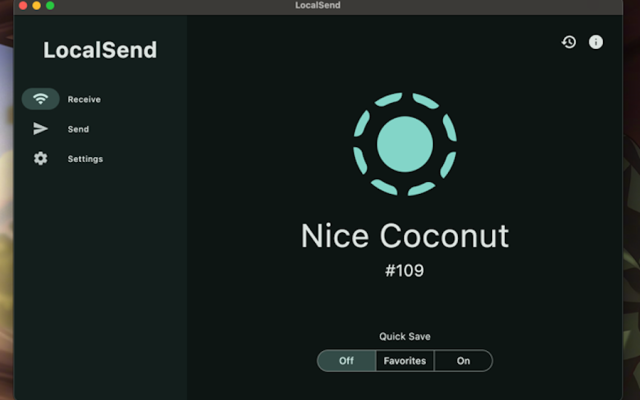
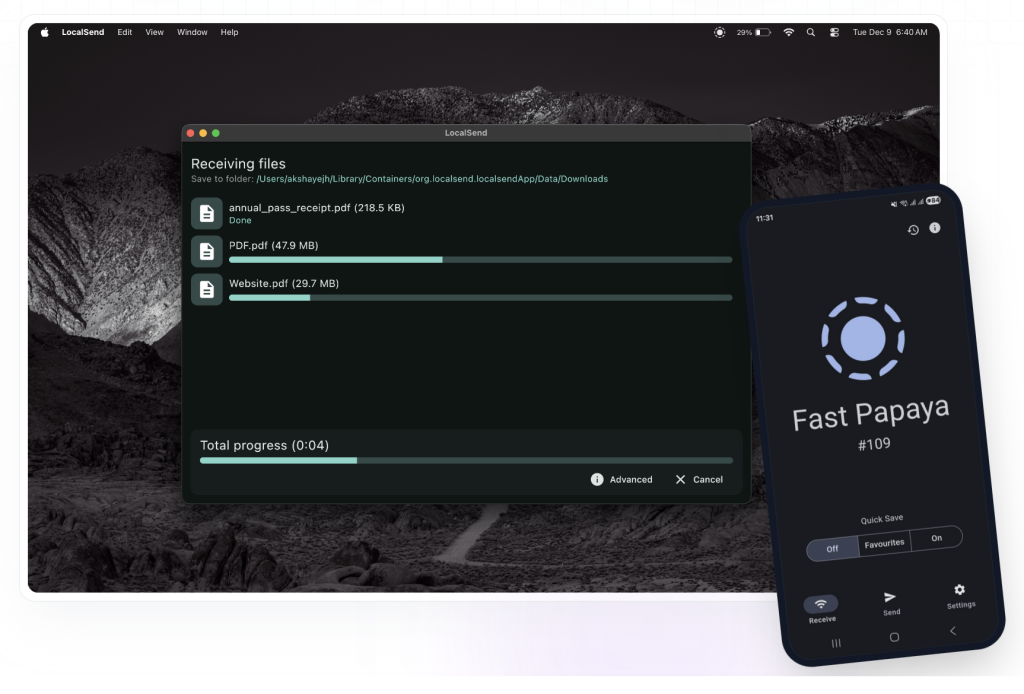
LocalSend is a free, open-source app that lets you transfer files between devices over a local Wi-Fi network. It works on Mac, Windows, Linux, Android, and iOS. You don’t need an account, and your files don’t go through any server — everything travels directly from one device to the other.
The idea is simple: install the app on both devices, make sure they’re on the same Wi-Fi network, and send files back and forth. No cables, no cloud storage, no sign-up. It’s a clean concept, and it works well — when everything lines up.
The catch is that “everything lining up” is harder than it sounds, especially between a Mac and an Android phone.
Common LocalSend Errors Between Mac and Android
LocalSend has a large and active user community, and the same problems come up again and again. Here are the most common ones:
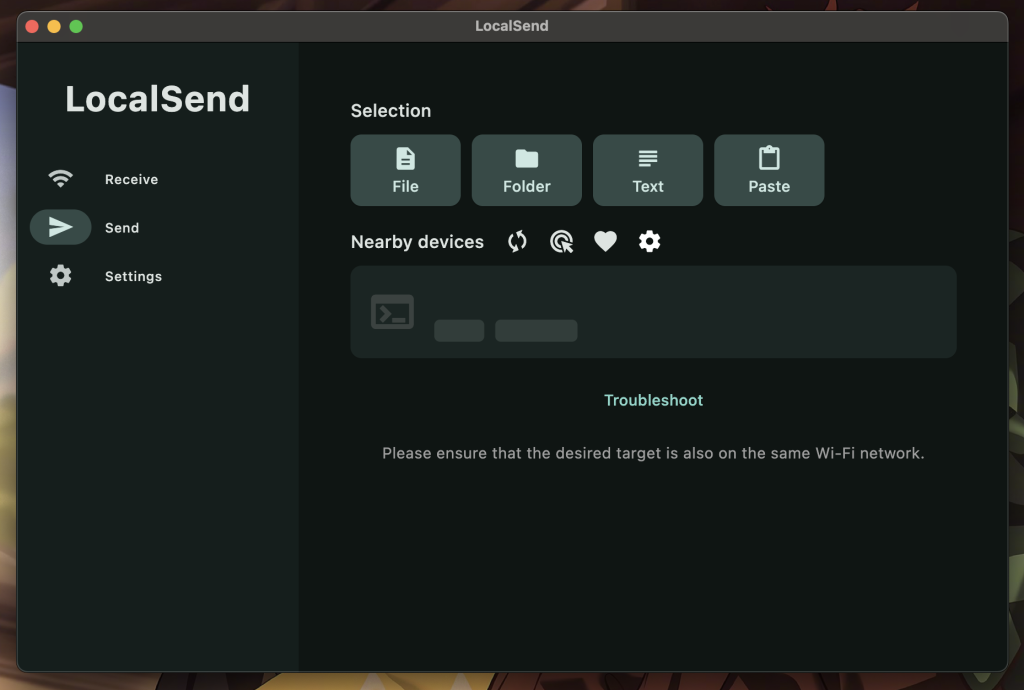
Devices don’t see each other. This is by far the most reported issue. The Mac and the Android phone are on the same Wi-Fi network, LocalSend is open on both — and nothing appears. One user described exactly this:
This happens because LocalSend uses multicast and broadcast signals to find other devices on the network. Many routers — especially in offices, apartment buildings, or anywhere with a more complex network setup — block these signals by default.
macOS firewall blocks the connection. Even when both devices are on the same network, the Mac’s built-in firewall often blocks LocalSend from accepting incoming connections. Users on GitHub report that LocalSend needs to be manually added to the allowed list under System Settings → Privacy & Security → Local Network. Even after doing this, some users say it still doesn’t work reliably.
“Operation not permitted” error on Android. This one appears after changing the download folder on an Android device. One user reported:
Worked well for a while. Then one day I decided to change the download destination on the phone and it all stopped working. Uninstalled and reinstalled. Still not working. Message is: PathAccessException: Cannot open file, path = '/storage/emulated/0/Download/Filename.mp4' (OS Error: Operation not permitted, errno = 1).— mattsh2, GitHub
The cause is Android’s storage permission system, which became significantly stricter starting with Android 10.
Slow transfer speeds to Android. Even when LocalSend does connect and transfer, speeds to Android devices can be surprisingly low — sometimes under 5 MB/s even on a fast Wi-Fi network. This is a known issue caused by Android’s Storage Access Framework, which limits how quickly apps can write files. The LocalSend developers have acknowledged this is a platform-level problem they can’t fully fix.
Transfers stop after macOS or app updates. Several users report that LocalSend worked fine until a system update — then stopped without any clear reason. Version mismatches between the Mac and Android versions of the app can also cause “handshake failed” errors where the devices can see each other but can’t actually complete a transfer.
App goes to sleep on Android. Android aggressively limits background app activity to save battery. If LocalSend isn’t in the foreground on your phone, it can stop responding to incoming connections — which looks like the Mac simply can’t find the device.
Why USB Is a More Reliable Option
Every problem listed above comes back to the same root issue: LocalSend depends on a perfect Wi-Fi environment. The right router settings, the right permissions, the right app versions, the right network configuration. Change any one of these and the transfer fails.
USB doesn’t have these dependencies. You plug in the cable, and you have a direct, stable connection between your Mac and your Android phone. No router, no firewall, no multicast signals, no background process management. The file goes from one device to the other, and that’s it.
USB transfers are also faster. Even a standard USB 2.0 connection outperforms LocalSend’s average Wi-Fi transfer speed to Android. A USB 3.0 cable is significantly faster still.
And USB is more private. With LocalSend, your files travel over a shared Wi-Fi network. With USB, they don’t travel over any network at all.
The one catch with USB and Mac is that macOS doesn’t support Android’s file system protocol (MTP) natively. Plug your Android phone into your Mac and the Mac won’t know what to do with it. You need a dedicated app to bridge that gap. Two good ones exist: OpenMTP and MacDroid.
OpenMTP
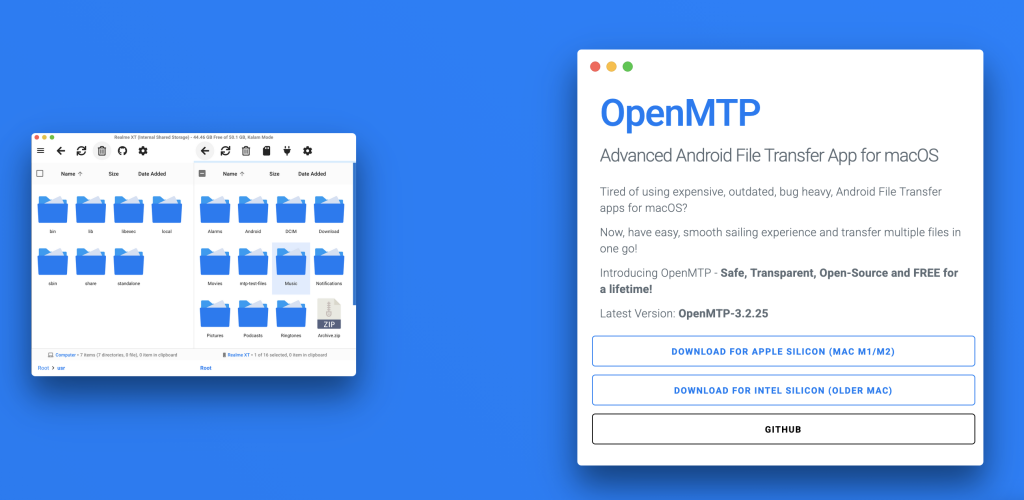
OpenMTP is a free, open-source file manager for Mac that adds full Android MTP support. It gives you a dual-panel interface — Mac files on one side, Android files on the other — and lets you drag and drop between them.
It’s reliable, actively maintained, and costs nothing. For users who want a straightforward USB solution without spending money, OpenMTP is a solid choice.
MacDroid — The Recommended Solution
For most users, MacDroid is the better option. It’s built specifically to make the Mac-Android USB connection feel natural — and it does this by integrating directly into Finder rather than creating a separate file management interface.
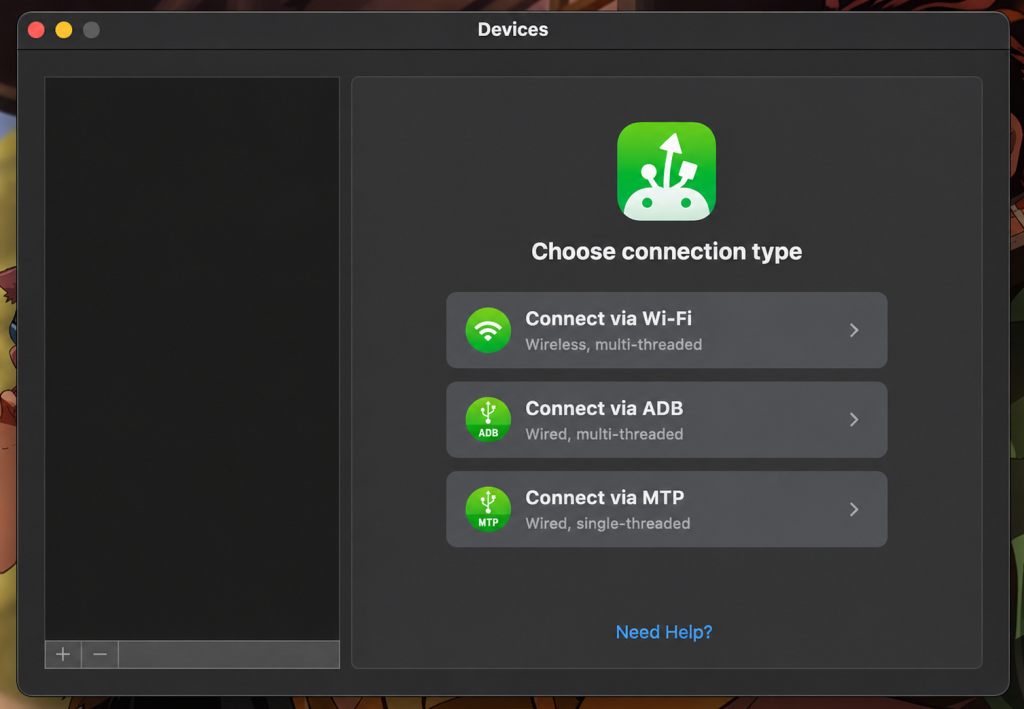
Here’s what makes MacDroid stand out:
Finder integration. When you plug in your Android phone and open MacDroid, your device appears in Finder — exactly where your external hard drives, USB sticks, and SD cards appear. You don’t need to learn new software. If you know how to move files around on your Mac, you already know how to use MacDroid.
Two connection modes. MacDroid supports both MTP (Media Transfer Protocol) and ADB (Android Debug Bridge). MTP is the standard mode for browsing and transferring files — it’s what most users will use every time. ADB gives more advanced users deeper access to the device file system. You won’t need ADB for everyday transfers, but it’s available if you do.
Full read and write access. You can copy files to your Android device, not just from it. This matters more than it sounds — some transfer tools, including certain wireless options, only let you pull files off your phone, not push files onto it.
Reliable with large files. MacDroid handles large video files, full photo libraries, and big document folders without dropping the connection or stalling midway. This is one of the areas where it most clearly beats wireless tools, including LocalSend on a slow day.
No internet connection required. Because everything happens over USB, MacDroid works completely offline. Your files don’t pass through any server, any network, or any third-party infrastructure. They go from your Android device to your Mac, directly.
Broad device compatibility. MacDroid works with a wide range of Android phones and tablets — Samsung, Google Pixel, OnePlus, Xiaomi, and most other major brands.
HEIC to JPEG conversion. MacDroid can automatically convert HEIC photos to JPEG during transfer — handy when moving images between different devices and platforms that don’t all support the HEIC format.
For everyday file transfers between Mac and Android — especially large files, regular transfers, or situations where Wi-Fi isn’t reliable — MacDroid is the most consistent and user-friendly solution available.
Conclusion
LocalSend is a well-designed app and a genuine attempt to solve a real problem. When it works, it’s fast and convenient. But between a Mac and an Android phone, it frequently doesn’t work — and the reasons why are often outside the user’s control: router configuration, macOS firewall settings, Android storage restrictions, app version mismatches.
If you’ve run into these problems, you’re not doing anything wrong. The tool just has limits that become obvious in this particular Mac-Android combination.
A USB cable and the right app solve all of these issues at once. OpenMTP is a good free option. MacDroid takes it further, giving you a polished, Finder-integrated experience that makes transferring files between Mac and Android as simple as it always should have been.
No dropped connections. No firewall prompts. No router settings to check. Just plug in and go.