
You’ve got files on your Android phone. You need them on your Mac. You’ve heard about LocalSend — open source, no account, no cloud, works over Wi-Fi. Sounds perfect. You install it, connect both devices, start the transfer… and watch the speed counter sit at 2 MB/s while your 10GB video crawls toward the finish line.
Sound familiar? You’re not imagining it. LocalSend transfer speed is a real and widely discussed problem. This article explains what LocalSend is, how fast it actually transfers files, why it slows down, and what to do when Wi-Fi simply isn’t fast enough.
What is LocalSend and how does it work?
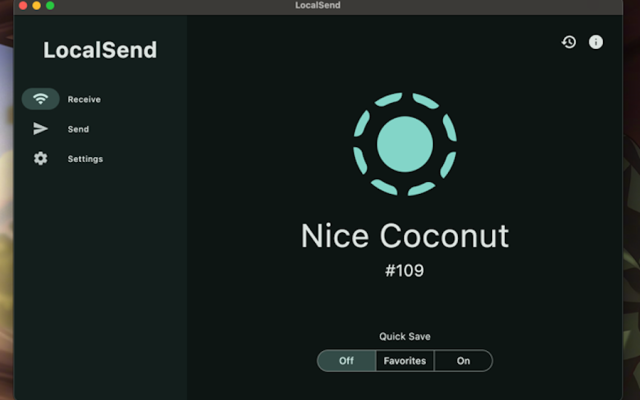
LocalSend is a free, open-source app for transferring files between devices over a local Wi-Fi network. It runs on Mac, Windows, Linux, Android, and iOS. Both devices need to have the app installed, and both need to be on the same Wi-Fi network — then they find each other automatically, and you can send files in either direction.
The big selling point is privacy: your files go directly from one device to the other, without passing through any server or cloud storage. No account needed. No subscription. No upload anywhere.
For cross-platform transfers — especially between Mac and Android, which don’t have a native way to talk to each other — LocalSend fills a real gap. The question is how well it fills it when the files get large.
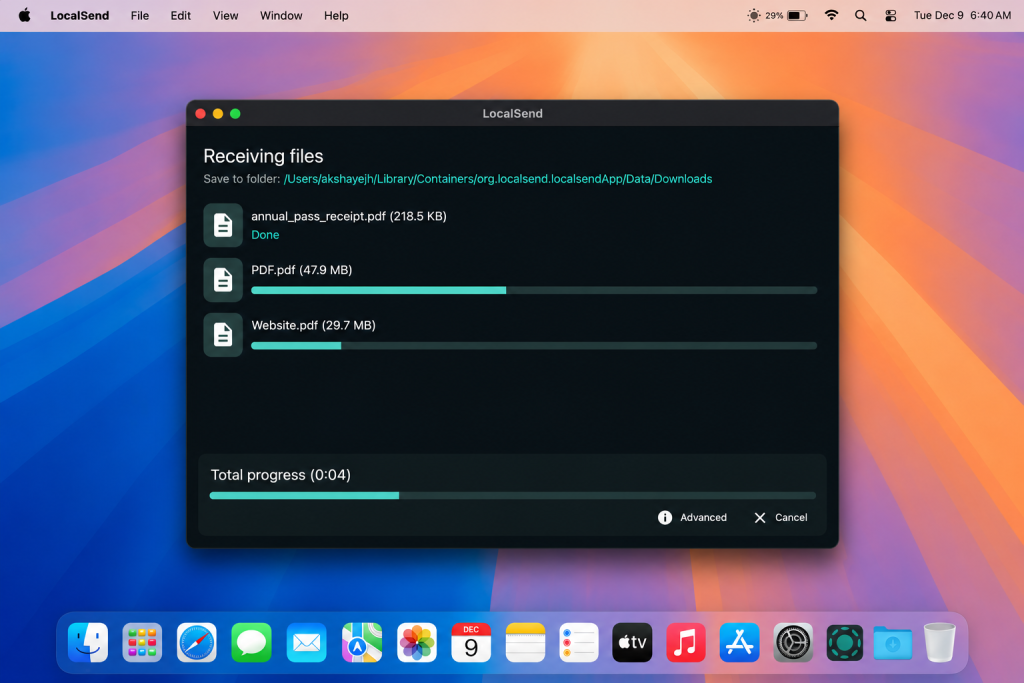
How Fast Is LocalSend?
LocalSend’s speed varies a lot depending on your setup. Here’s an honest picture based on real user data and reports from the LocalSend GitHub:
On a 5GHz Wi-Fi network with encryption disabled, LocalSend can reach around 17–20 MB/s for large files (according to GitHub user). That’s the ceiling for most setups — and reaching it requires specific conditions.
With encryption enabled on an older Mac, speeds can drop to around 6 MB/s or lower. Encryption processing puts a significant load on the CPU, and older Intel Macs feel this more than newer Apple Silicon machines.
For transfers to Android specifically, speeds between 2–3 MB/s are commonly reported. One user on GitHub asked directly:
“I am using LocalSend to transfer files from my Android to Mac, but I am getting very slow transfer speed like 2 to 3 MB/s. Is there any setting I need to change to get higher speeds?”
The underlying reason is Android’s Storage Access Framework — a system-level restriction on how quickly apps can write files to Android storage. LocalSend can’t fix this because it’s a platform limit, not an app bug.
The Biggest Speed Problems With LocalSend
Beyond raw speed, there are several specific situations where LocalSend’s performance falls apart.
Speed drops progressively when sending many files.
This is one of the most documented issues on GitHub. One user transferred 7,000 image files from Android and found that after 100 files, speed was around 1 MB/s. After 500 files, it dropped to 600 KB/s. After 1,000 files, it was down to 80 KB/s. The same user discovered that zipping all the files into one archive gave a steady 4 MB/s — which shows the problem is how LocalSend handles many individual files, not the total amount of data.
Transfers to Android are consistently slower than transfers from Android.
This asymmetry trips up a lot of users. Moving files from Mac to Android is noticeably slower than moving them the other way. The cause is Android’s write restrictions — the operating system controls how fast apps can save files to storage, and LocalSend has no way around this.
Some Android phones throttle speed after the first transfer.
One user testing a Huawei device found that the first transfer ran at normal speed, but subsequent transfers were noticeably slower — and a phone reboot restored the speed. This isn’t a LocalSend bug specifically, but it’s part of the real-world experience of using it between Mac and Android.
Devices on 2.4GHz Wi-Fi are significantly slower than 5GHz.
This sounds obvious, but many users don’t realize their phone has connected to the slower 2.4GHz band while their Mac is on 5GHz. One tester found that switching their phone from 2.4GHz to 5GHz raised LocalSend speed from 13 MB/s to 17 MB/s — a 30% improvement just from changing which band the phone connects to.
Encryption slows things down more than expected.
LocalSend uses TLS encryption by default — which is good for security, but comes at a speed cost. Disabling encryption in the app’s advanced settings can roughly double transfer speeds on some machines. This is a real trade-off: faster transfers, less security.
When Wi-Fi Is Not Enough: The Case for USB
Every speed problem with LocalSend traces back to the same underlying issue: Wi-Fi is a shared, variable medium. The speed you get depends on your router, your band, your encryption settings, Android’s storage restrictions, the number of files, and how long the transfer has been running. Change any of these and the speed changes.
USB doesn’t work that way. The connection is direct and physical. The speed is determined by the cable and the hardware — not by network congestion, router behaviour, or Android storage limits. A USB 3.0 connection transfers files at speeds that dwarf what LocalSend can achieve over Wi-Fi, and it does so consistently from the first file to the last.
There’s also no setup to worry about. No checking which Wi-Fi band your phone connected to. No turning encryption on or off. No watching speed drop after 500 files. You plug in the cable and transfer.
The one thing you need is an app to bridge the gap — because macOS doesn’t support Android’s file system (MTP) natively. MacDroid is one of the solutions.
MacDroid: USB File Transfer Between Mac and Android
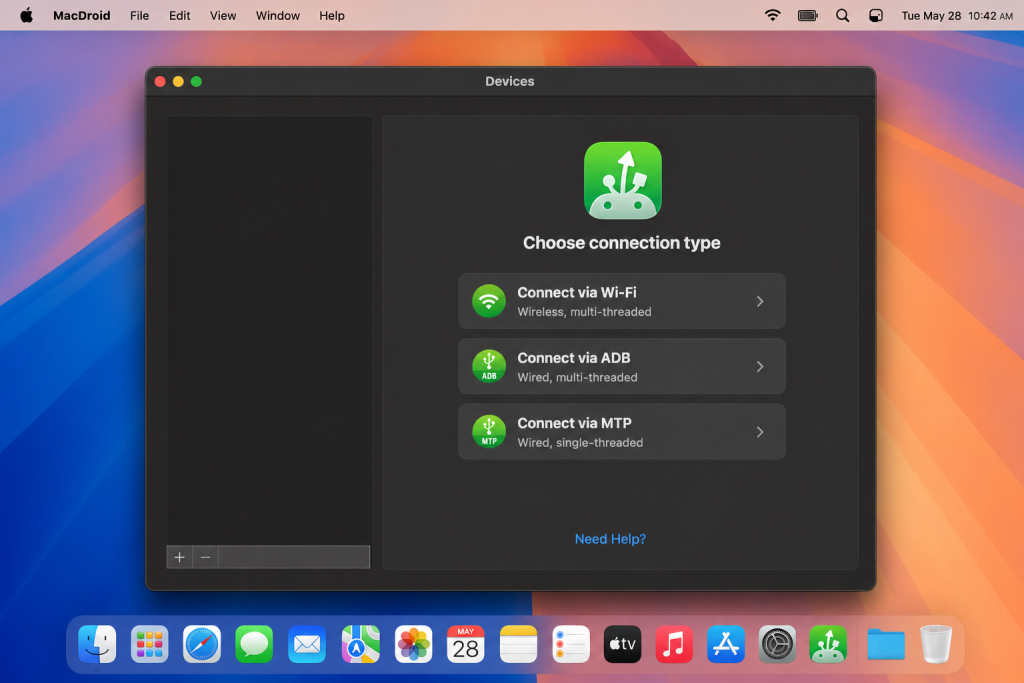
MacDroid is built specifically to connect Android devices to Mac over USB. It’s the most direct solution for transferring files when the Wi-Fi connection is unstable.
The Advantages
Speed that doesn’t drop. Over USB, MacDroid maintains consistent transfer speeds regardless of file size or file count. Whether you’re moving one large video or thousands of photos, the speed stays steady. There’s no progressive slowdown, no asymmetry between sending and receiving, no ceiling imposed by Wi-Fi.
Finder integration. When you connect your Android phone and open MacDroid, your device appears in the Finder sidebar — right next to your other drives. You don’t open a new app or learn a new interface. You just see your phone in Finder and drag files the same way you would with any external drive.
Full two-way access. MacDroid gives you full read and write access to your Android device. Moving files from Mac to Android is just as fast and reliable as moving them the other way — which is the opposite of what LocalSend users experience over Wi-Fi.
No dependency on network quality. No Wi-Fi band to check. No router settings to configure. No encryption trade-offs. The transfer speed you get is the speed the cable and hardware support — and it’s there every time.
Works completely offline. No internet connection needed. No server involved. Your files go from your phone to your Mac through a physical cable and nowhere else.
Broad Android compatibility. MacDroid works with Samsung, Google Pixel, OnePlus, Xiaomi, and most other Android phones and tablets without extra setup.
Two connection modes. MacDroid supports both MTP (the standard file transfer mode) and ADB (a more advanced mode for users who need deeper access). Most users will only ever need MTP — but ADB is there if you need it.
The Disadvantages
Not free. MacDroid is a paid app. For users who only transfer files occasionally, the cost may not feel justified compared to a free wireless tool. OpenMTP is a free, open-source alternative that also adds Android MTP support to Mac, though with a more basic interface.
For most users who transfer files regularly between Mac and Android — especially large files — these trade-offs are easy to accept. A cable is rarely far away, and the speed and reliability difference is significant.
Conclusion
LocalSend is a solid app for what it is: a free, private, cross-platform wireless file transfer tool. For small files on a good 5GHz network, it works well. But for large transfers, many files, or the specific Mac-to-Android direction, the speed problems are real and consistent — and they’re not fixable through settings alone.
If transfer speed matters, USB is the better path. MacDroid makes that connection simple, fast, and fully integrated into how Mac already works. You get consistent speeds, full two-way access, and a transfer experience that doesn’t depend on what your router is doing today.
Frequently Asked Questions
The main reason is Android’s Storage Access Framework — a system-level restriction that limits how quickly apps can write files to Android storage. LocalSend can’t bypass this because it’s built into the Android operating system, not the app itself. Transfers from Android to Mac are typically faster than transfers in the other direction for this reason.
Yes, disabling encryption in LocalSend’s advanced settings can significantly improve speed — some users report speeds doubling after turning it off. However, this comes at a cost: your files are no longer encrypted during transfer. On a home network this is a reasonable trade-off for many users; on a shared or public network it’s not recommended.
In most real-world situations, yes — significantly faster. LocalSend tops out at around 17–20 MB/s under ideal Wi-Fi conditions, and often transfers to Android at just 2–3 MB/s. MacDroid transfers over USB are not subject to these limitations, and maintain consistent speeds from start to finish regardless of file count or size.
Besides LocalSend, you might want to consider these options:
- Quick Share — a tool from Google (formerly Nearby Share) for quickly transferring files between Android devices, as well as Windows and some Samsung devices. It’s a good fit if you mainly work within the Google/Android ecosystem.
- OpenMTP — a free, open-source app for macOS that lets you transfer files between a Mac and Android devices via the MTP protocol (over USB, no cloud involved). A solid choice if you’re on a Mac and need a stable connection to an Android phone.
Unlike LocalSend, both options are more tied to specific platforms, so the right choice depends on which devices you use.
User situation: