
You’re on a plane, in a café with a locked-down network, or somewhere without a reliable router — and you need to move files from your Android phone to your Mac. You have LocalSend installed on both devices. You open it. Nothing appears. The devices can’t see each other.
So the question becomes: does LocalSend work without Wi-Fi? And if not, what do you do?
What Is LocalSend?
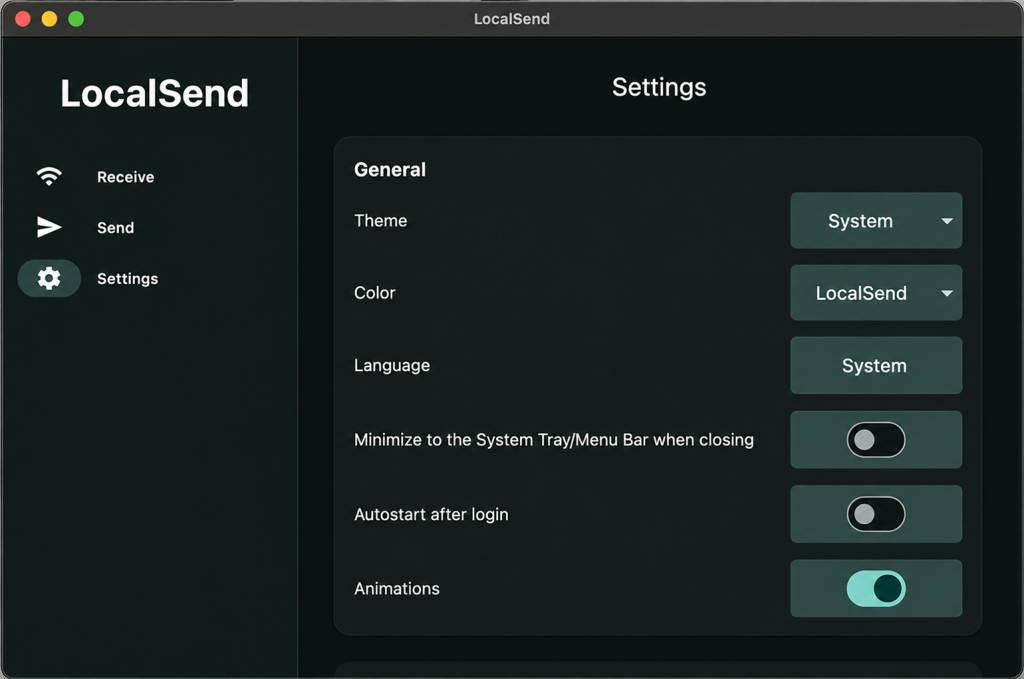
LocalSend is a free, open-source file transfer app that works on Mac, Windows, Linux, Android, and iOS. Its core appeal is simple: it transfers files directly between devices, without uploading anything to a server or cloud. No account, no subscription, no internet required — in theory.
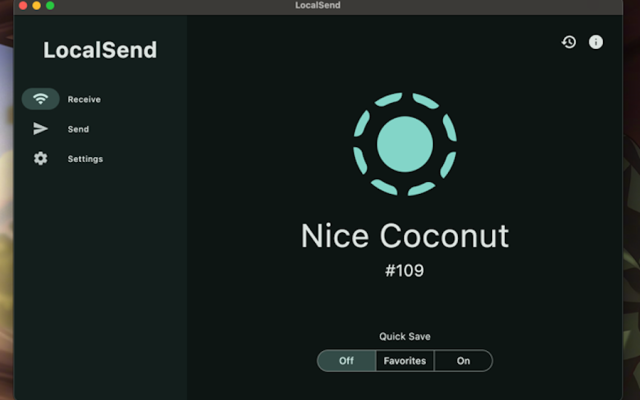
Both devices need to have LocalSend installed, and they find each other automatically once they’re on the same network. Then you select files on one device and send them to the other. It’s clean, it’s private, and for most home or office setups, it works well.
The keyword there is “network.” And that’s exactly where things get complicated when Wi-Fi isn’t available.
Does LocalSend Work Without Wi-Fi?
The short answer is: not in the way most people expect.
The Biggest Speed Problems With LocalSend
LocalSend does not use the internet at all, and it doesn’t use Bluetooth either. It works exclusively over a local Wi-Fi network This means that while LocalSend doesn’t need an internet connection, it absolutely needs a Wi-Fi connection of some kind — a router, a hotspot, or some other local network that both devices can join.
For two devices to connect using LocalSend, they must either be on the same local Wi-Fi network via a router, or use one device’s hotspot. There is no option to connect directly device-to-device without any network in between.
This surprises a lot of users. LocalSend markets itself as an offline tool — and in one sense it is, because your files don’t go through the internet. But “offline” in LocalSend’s world still means “connected to a local Wi-Fi network.” Without that, the app simply can’t find the other device.
Users on the LocalSend GitHub have been asking for more flexibility here for years. One user wrote: “It would be great if it could work via Bluetooth as well. Many times when I am traveling I want to move photos from my cellphone to my data collection laptop which has no Wi-Fi network to connect to and in remote locations.” As of now, Bluetooth support is not on the official roadmap.
Unlike apps such as Feem and SHAREit, LocalSend does not support Wi-Fi Direct — a technology that allows two devices to connect directly to each other without needing a router or hotspot. This is a frequently requested feature, and its absence is the main reason LocalSend struggles in situations where no traditional Wi-Fi network is available.
Workarounds: How to Use LocalSend Without a Regular Wi-Fi Network
If you don’t have a router-based Wi-Fi network available, there are a few workarounds. None of them are as simple as just opening the app, but they do work.
Option 1: Use a Mobile Hotspot
The most practical workaround is to turn one device into a hotspot and connect the other device to it. The device hosting the hotspot does not need to be connected to the internet for this to work. A hotspot without internet access is enough for LocalSend to find devices and transfer files.
In practice: turn on the hotspot on your Android phone, connect your Mac to that hotspot via Wi-Fi, open LocalSend on both devices, and the transfer works normally. This is the method LocalSend’s own documentation recommends when a regular network isn’t available.
The downside is that it takes setup time — especially on a Mac, where switching Wi-Fi networks means disconnecting from whatever you’re currently on. And in some locations, like on a plane or in a meeting, turning on a hotspot isn’t practical.
Option 2: Create a Hotspot on Your Mac
The same approach works in reverse. On a Mac, you can share your internet connection (or create a local network without internet) via System Settings → General → Sharing → Internet Sharing. Your Android phone then connects to that Mac-hosted network, and LocalSend can find both devices.
This is useful if your phone is low on battery and you’d rather not drain it running a hotspot. But again, it requires some setup and access to system settings.
Option 3: Use a Local Network Without Internet
LocalSend works just fine on a Wi-Fi network that has no internet connection — it only needs a local network that both devices can join. So if you’re in an office with a private internal network, or connected to a router that has no internet service, LocalSend will still work. The confusion often comes from people assuming “no internet” means “no Wi-Fi” — but for LocalSend, these are different things.
When Workarounds Aren't Enough
These workarounds cover many situations, but not all of them. If you’re on a plane, in a location where you can’t use a hotspot, on a public network that blocks device discovery, or in a scenario where you simply want to plug in and get the job done — workarounds aren’t the answer.
And even when workarounds do work, they add friction. Switching Wi-Fi networks on a Mac, setting up a hotspot on your phone, reconfiguring firewall settings — none of this is what you’d call simple. For frequent transfers, it’s not a sustainable workflow.
This is exactly the situation where MacDroid changes everything.
MacDroid: The Solution That Doesn't Need Wi-Fi at All
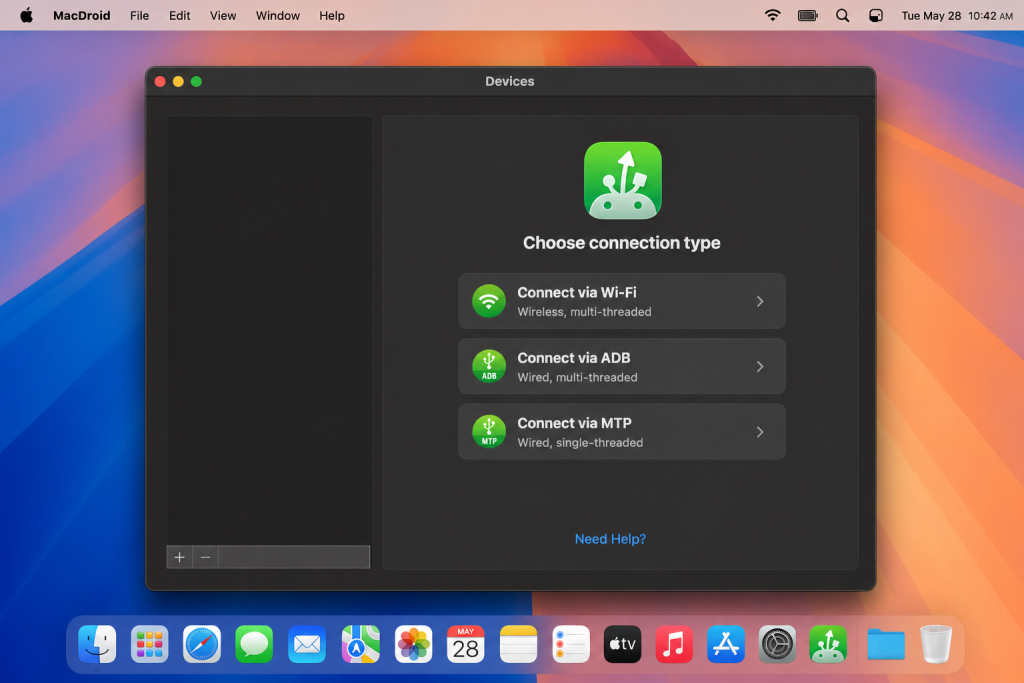
MacDroid connects your Android phone to your Mac over a USB cable. There is no Wi-Fi involved. No hotspot to set up. No network to join. You plug in the cable, open MacDroid, and your Android device appears directly in Finder — ready to transfer files.
This is not a workaround. It’s how the connection is designed to work: direct, physical, and completely independent of any network.
Why MacDroid Solves the No-Wi-Fi Problem
When Wi-Fi isn’t available, every wireless transfer tool — LocalSend, PairDrop, Send Anywhere — hits a wall. They all need some form of network to function. MacDroid sidesteps this entirely because it uses USB instead.
Plug in your phone anywhere — on a plane, in a hotel room, in a remote location with no network at all — and MacDroid works exactly the same as it does at your desk at home. The transfer doesn’t depend on signal strength, router access, or hotspot availability. It depends on a cable, and cables work everywhere.
The Advantages of MacDroid
Finder integration. Your Android phone appears in the Finder sidebar when connected through MacDroid — right next to your external drives and USB sticks. You don’t need to learn a new app or navigate a separate interface. If you know how to use Finder, you can use MacDroid immediately.
Consistent transfer speeds. Over USB, speeds are not subject to Wi-Fi band selection, network congestion, or Android storage restrictions. MacDroid transfers files quickly and steadily, regardless of file size or how many files are being moved.
Full two-way access. MacDroid gives you complete read and write access to your Android device. You can copy files onto your phone just as easily as copying them off it — and both directions are equally fast and reliable.
Works anywhere, anytime. No Wi-Fi, no internet, no hotspot needed. Plug in the cable and transfer. This is the core advantage over LocalSend and every other wireless tool.
Completely private. Your files move through a cable between two devices you own. Nothing passes through a network, a server, or any third-party infrastructure.
Broad compatibility. MacDroid works with Samsung, Google Pixel, OnePlus, Xiaomi, and most other Android phones and tablets without additional setup or drivers.
Two connection modes. MacDroid supports both MTP (the standard mode for browsing and transferring files) and ADB (a more advanced mode for users who need deeper device access). Most users will only ever use MTP, but the ADB option is there if needed.
Conclusion
LocalSend is a genuinely useful app for wireless file transfers — but it can’t work without some form of Wi-Fi network. It doesn’t support Bluetooth, it doesn’t support Wi-Fi Direct, and it can’t connect devices without a shared local network to work through. When that network isn’t available, your options are limited to setting up a hotspot — which works, but adds friction and doesn’t suit every situation.
MacDroid removes the network dependency entirely. It connects your Mac and Android phone over USB, works anywhere without any network setup, and integrates directly into Finder. For anyone who moves files regularly between Mac and Android — or who needs a transfer solution that works even when Wi-Fi doesn’t — MacDroid is the more reliable and more flexible choice.
Frequently Asked Questions
No. LocalSend only works over a local network — it doesn’t route transfers through the internet, and it can’t use mobile data as a connection method. If you need to transfer files between devices that aren’t on the same local network, you’ll need a different tool entirely, such as Send Anywhere or a USB-based solution like MacDroid.
Yes — this is the recommended workaround when no regular Wi-Fi network is available. Turn on your Android phone’s hotspot, connect your Mac to that hotspot via Wi-Fi, and LocalSend will be able to find both devices and transfer files normally. The hotspot doesn’t need to have internet access for this to work. The trade-off is the setup time and the need to switch your Mac’s Wi-Fi connection.
Both features have been requested by users on the LocalSend GitHub, and both remain unimplemented as of 2025. The developers have noted that Bluetooth file transfer has performance limitations, and Wi-Fi Direct support would require significant additional development work. For now, LocalSend remains a Wi-Fi-only tool — which is why USB-based solutions like MacDroid are a practical alternative for users who need transfers to work without a router.
User situation: