Moving files between a Mac and an Android phone sounds like it should be simple. You grab your phone, you grab your laptop, and you just… send the file over. But if you’ve ever tried to do this, you know it rarely works that way. One of the tools people turn to is PairDrop — a free, browser-based service that promises easy wireless transfers. It works sometimes. But not always. And when it doesn’t, you’re left searching for a PairDrop alternative that actually gets the job done.
Let’s break it all down.
What Is PairDrop?
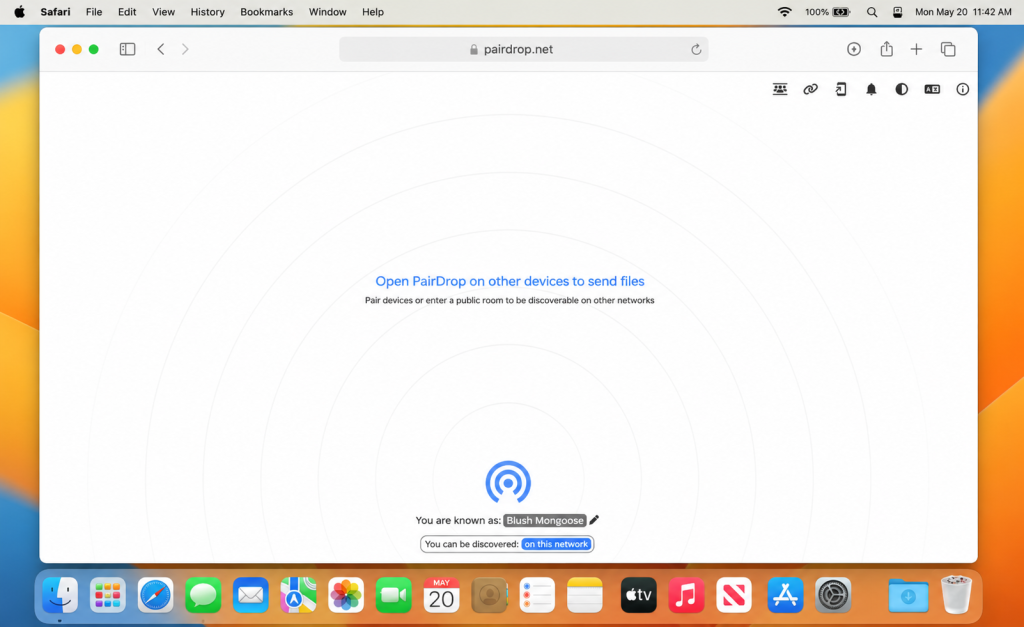
PairDrop is an open-source, web-based file-sharing tool. You open it in a browser on two devices, they detect each other over the same Wi-Fi network, and you drag and drop files between them. No account needed. No app to install. Just a browser and a local network.
It works on the same idea as Apple’s AirDrop — hence the name — but it runs in the browser, which means it works across platforms. Mac, Windows, Android, iPhone — in theory, they all talk to each other through PairDrop.
For quick, small transfers on a trusted network, it’s a convenient option — as long as conditions cooperate.
Common PairDrop Errors and Problems
PairDrop works well for many users, but there are some common issues worth knowing about.
Devices not discovering each other. This is the most common complaint. PairDrop relies on both devices being on the same Wi-Fi network and being able to communicate directly over it. Many routers — especially in offices, hotels, or shared housing — block this kind of device-to-device traffic. The result: your Mac and your Android phone sit there, invisible to each other.
Transfer fails midway. Start sending a large video file and PairDrop might stall or drop the transfer completely. Browser-based tools aren’t built for heavy lifting, and large files push them to their limits.
Browser compatibility issues. PairDrop works best in Chrome. On some Android browsers or older versions of Safari on Mac, the connection either doesn’t establish or breaks unexpectedly.
No transfer history or resume. If a transfer fails, you start from scratch. There’s no way to resume a broken transfer.
Security concerns on public Wi-Fi. If you use PairDrop on a public network — a café, an airport — you’re broadcasting your presence to every other device on that network. Other PairDrop users can see you and, depending on your settings, might attempt to send you files.
These aren’t bugs in the traditional sense. They’re limitations built into how PairDrop works. And for many users, they’re reason enough to look elsewhere.
And it’s not just tech-savvy users who notice. Real people on Reddit say the same thing. One user shared their frustration in a thread about file transfer tools:
Recently, I've been using pairdrop to transfer files between a mobile using only mobile data (not wifi) and computers from my university. However, for some reason when I paid devices, those won't appear or just be in the list of paired devices as "unknown".— Reddit user
That sums up the PairDrop experience for a lot of people: promising in theory, unreliable in practice.
Online Alternatives to PairDrop
If you want to stay in the browser-based, wireless world, there are two solid PairDrop alternatives worth knowing about.
Snapdrop
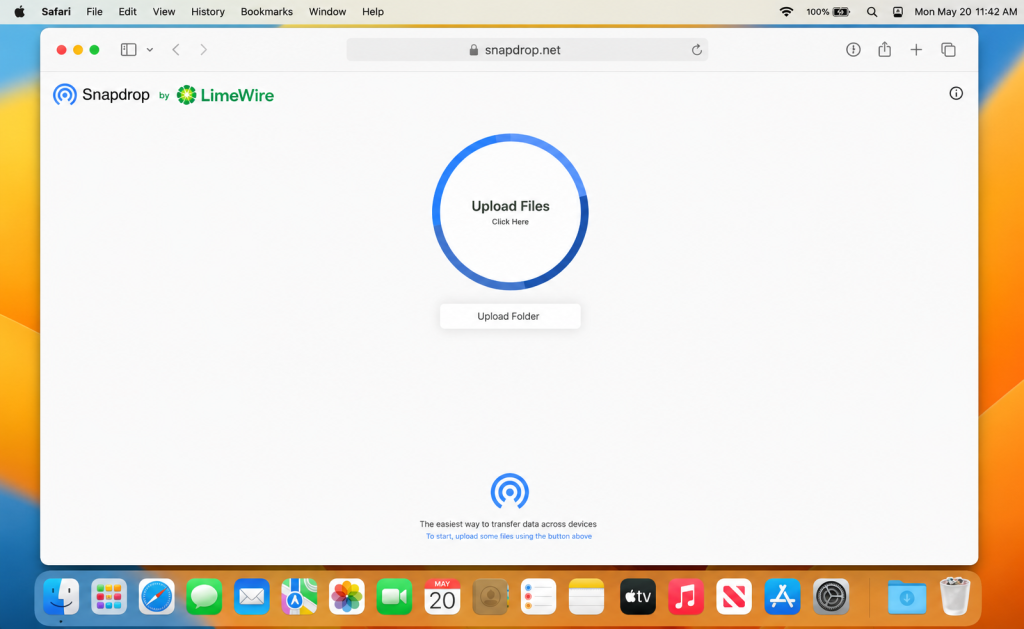
Snapdrop is actually what PairDrop was forked from. It’s nearly identical in how it works — open it in a browser on both devices, connect over local Wi-Fi, send files. The interface is clean and simple, and it handles small files well.
The limitations are also similar: same-network dependency, trouble with large files, and no transfer history. But if PairDrop isn’t detecting your devices and you want to try something else quickly, Snapdrop is the obvious first stop.
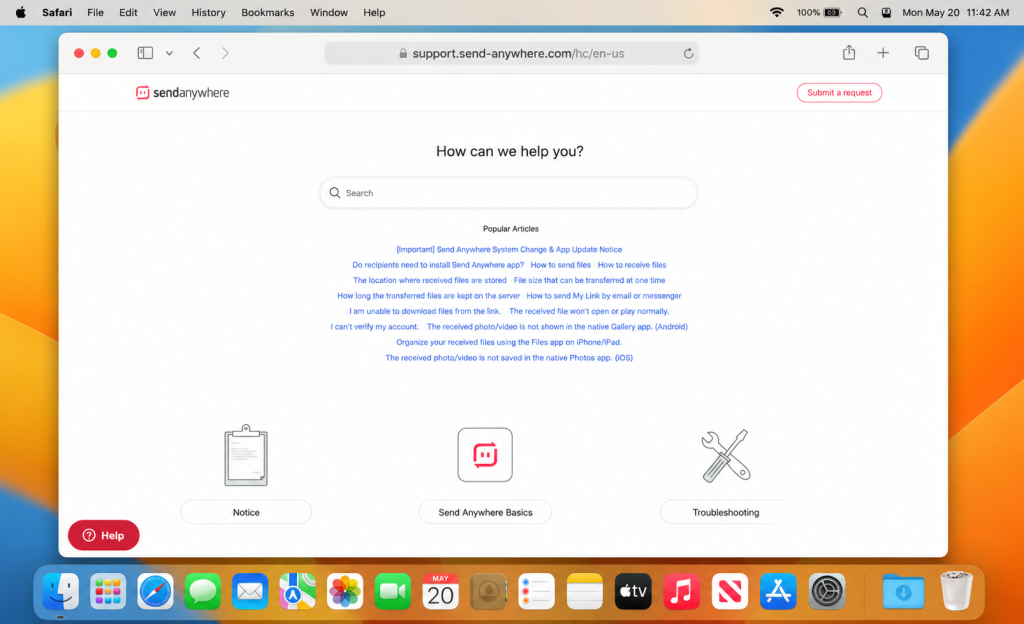
Send Anywhere
Send Anywhere takes a different approach. Instead of relying on local network discovery, it generates a six-digit key on one device. You enter that key on the other device, and the transfer happens — either directly between devices or through Send Anywhere’s servers if a direct connection isn’t possible.
This makes it far more reliable across different network setups. It works even when devices are on different Wi-Fi networks. Free transfers are capped at a certain size, and larger transfers require a paid plan, but for most everyday files, the free tier does the job.
Send Anywhere has real apps for both Mac and Android, which makes it more stable than purely browser-based tools.
Why USB Is Actually the Better Option
Here’s the honest truth: wireless file transfer between Mac and Android has always been a workaround. These two platforms weren’t designed to talk to each other natively, and every wireless solution — PairDrop, Snapdrop, Send Anywhere — is patching over that gap.
When you transfer files over Wi-Fi, you’re depending on network stability, router configuration, browser compatibility, and server uptime (for cloud-based tools). Any one of these can fail.
USB doesn’t have these problems. Plug in the cable and the connection is direct, stable, and fast. You’re not sending your files through a browser, a server, or a router. You’re just moving data from one device to another.
USB transfers are also more secure. With wireless tools, your files travel over a network — and sometimes through third-party servers. With USB, the data goes from your phone to your Mac and nowhere else.
The catch? Mac doesn’t natively support Android’s file transfer protocol (MTP). Plug an Android phone into a Mac and nothing useful happens — the Mac doesn’t know what to do with it. That’s where dedicated apps come in.
MacDroid
There are many different approaches to transferring files from Android to Mac. I already have a lot of experience with macOS, but didn’t find a good file management solution until recently. AirDroid was my go-to for a long time, but didn’t like the fact that you needed an online connection to transfer files between two local devices. MacDroid is a lot better in this regard, it just mounts the phone/tablet as an external drive.— from Reddit
For most users, MacDroid is the better solution. It’s a Mac app built specifically for connecting Android devices over USB, and it’s designed to feel natural to Mac users rather than like a tool ported from another platform.
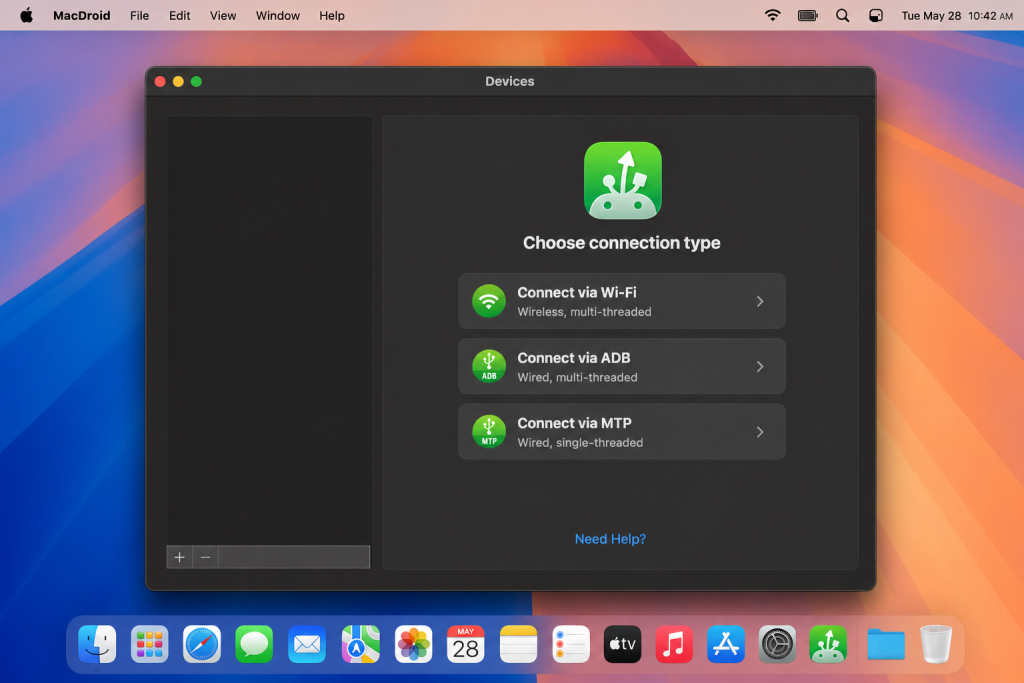
Here’s what makes MacDroid stand out:
Simple, clean connection. You plug in your Android phone, open MacDroid, and your device appears in Finder — the same place your Mac hard drive, external drives, and SD cards appear. No separate file manager to learn. No new interface to navigate. If you know how to use Finder, you already know how to use MacDroid.
Two transfer modes. MacDroid supports both MTP (Media Transfer Protocol) and ADB (Android Debug Bridge) modes. MTP is the standard way to browse and transfer files. ADB mode gives more advanced users deeper access to the device file system. Most people will use MTP and never need to think about ADB — but it’s there if you do.
Full read and write access. You can copy files to your Android device, not just from it. This sounds obvious, but some transfer tools only give you one-way access. MacDroid gives you full control in both directions.
Support for large files. MacDroid handles large video files, music libraries, and document folders without stalling or failing midway. This is where it genuinely outperforms browser-based tools.
Works without an internet connection. Because the transfer happens over USB, MacDroid doesn’t need Wi-Fi, mobile data, or any network connection at all. Your files stay on your devices and go nowhere else.
Broad Android compatibility. MacDroid works with a wide range of Android phones and tablets — Samsung, Google Pixel, OnePlus, Xiaomi, and most other major manufacturers.
HEIC to JPEG conversion. MacDroid can automatically convert HEIC photos from iPhone to JPEG during transfer — useful if you’re moving photos between mixed devices.
For users who want a reliable, Finder-integrated experience without learning new software or dealing with wireless connectivity problems, MacDroid is the cleanest solution available.
Conclusion
PairDrop is a clever tool and it works — when conditions are right. But those conditions (same network, compatible browser, no router restrictions, small file sizes) aren’t always there. When PairDrop fails, users need something more dependable.
For wireless transfers, Snapdrop and Send Anywhere are the most practical alternatives. Send Anywhere in particular is more robust than PairDrop for users who need reliability across different networks.
But if you’re moving files regularly between a Mac and an Android device — especially large ones — the most reliable answer is a USB cable and the right app. MacDroid makes that connection seamless, integrating Android directly into Finder so that transferring files feels as natural as moving files between two folders on your Mac.
No dropped connections. No browser issues. No files traveling through someone else’s server. Just a fast, direct, secure transfer — the way it should have always worked.