You’ve got a large video, a batch of RAW photos, or a folder of project files sitting on your Android phone. You open PairDrop, select the file, watch the progress bar move — and then it stops. No error message, no explanation. The transfer just ends.
If this has happened to you, you’ve run into one of PairDrop’s most frustrating limitations. Here’s what’s actually going on, how big a file PairDrop can realistically handle, and what works better when it can’t keep up.
What Is PairDrop?
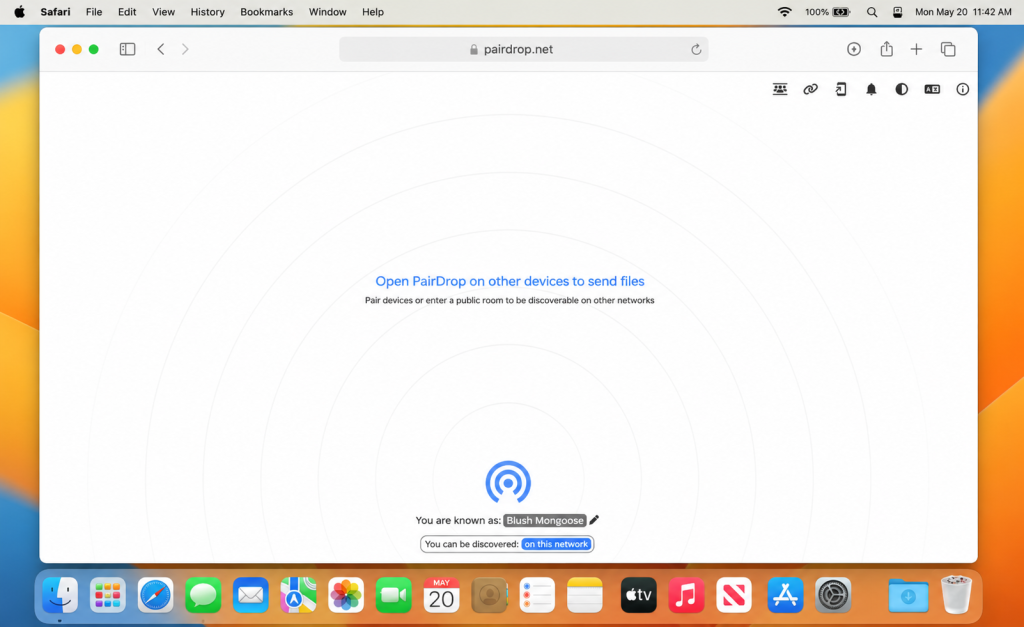
PairDrop is a free, open-source, browser-based file transfer tool. You open pairdrop.net on two devices connected to the same Wi-Fi network, they find each other automatically, and you send files between them. No account, no app install, no cloud upload — everything goes directly from one device to the other.
It works on Mac, Windows, Linux, Android, and iOS, which makes it one of the few tools that lets these platforms communicate with each other without any setup. For quick, lightweight transfers on a home network, it’s genuinely useful.
The problems start when files get large.
Does PairDrop Have a File Size Limit?
This is where the answer gets complicated — because PairDrop’s file size limitation isn’t a clean, official number. It’s a mix of technical constraints that play out differently depending on what devices you’re using and how they’re connected.
The 200MB limit for iOS devices. This is the most clearly documented restriction. When one of the devices in the transfer is an iPhone or iPad, PairDrop hits a hard ceiling of around 200MB. This comes from how iOS handles browser-based file transfers and is a known, reported issue on PairDrop’s GitHub: “[Enhancement] Increase limit for sending to iPhones (200MB) by rewriting FileChunker / FileDigester.” As of now, this limitation remains.
No hard limit on other platforms — but large files still fail. Between Android and Mac (or any non-iOS combination), PairDrop doesn’t have a single official file size cap. In theory, you can try to send any size file. In practice, files above a few hundred megabytes frequently fail — especially videos.
The clearest example comes directly from PairDrop’s GitHub issue tracker. A user reported: “I am trying to transfer a video file of more than 500MB via a wireless access point on the same network as my desktop is connected via Ethernet. The transfer proceeds to like 1/3 of the way and just ends prematurely. Smaller file sizes work.” The bug report is labeled as confirmed and marked as “under development” — meaning it’s a real, acknowledged problem, not user error.
Why this happens. PairDrop runs entirely in a browser using WebRTC — the same technology that powers browser-based video calls. Browsers weren’t designed to sustain long, heavy data transfers. For small files, this doesn’t matter. For large files, the browser can time out, lose the connection, or simply run out of memory. The transfer ends with no message because the browser doesn’t always know how to communicate what went wrong.
Multiple files get zipped automatically. This is another limitation that catches users off guard. When you select multiple files in PairDrop, the app automatically compresses them into a ZIP archive before sending. This means the receiver has to unzip the files after the transfer — every single time. This behaviour is especially annoying for large batches of photos or documents.
Workarounds for Sending Large Files With PairDrop
If you need to use PairDrop but are hitting size limits, a few approaches can help — though none of them are perfect.
Split the files into smaller chunks.
If your video or archive is too large to transfer in one go, splitting it into smaller pieces (under 200MB each for iOS, or under 500MB for other platforms to be safe) gives each transfer a better chance of completing. Tools like Keka on Mac or ZArchiver on Android can split files into parts. The downside is obvious: you need to reassemble them on the other end.
Use a wired connection on at least one device.
PairDrop’s large file failures are often made worse by Wi-Fi instability. If your Mac is connected to your router via Ethernet while your Android phone stays on Wi-Fi, the Mac side of the connection is much more stable — which reduces the chance of the transfer dropping midway.
Self-host PairDrop.
The publicly available pairdrop.net works fine for casual use, but running your own instance of PairDrop on a local server gives you more control over connection limits and timeout settings. This requires some technical knowledge and isn’t practical for most users — but for those comfortable with self-hosting, it removes some of the constraints of the public service.
Compress first, then send.
Counter-intuitively, compressing a large folder into a single archive before sending can improve reliability. PairDrop handles one large file more predictably than many small ones, and compression reduces the total data size. It doesn’t solve the fundamental problem, but it reduces the chance of a partial failure.
These workarounds help at the margins. But they don’t change the core issue: PairDrop is a browser-based tool built for convenience, not for heavy lifting. When the files get big, a different approach works better.
MacDroid: The Right Tool for Large File Transfers
MacDroid solves the PairDrop file size problem at the root — not by working around browser limitations, but by bypassing them entirely.
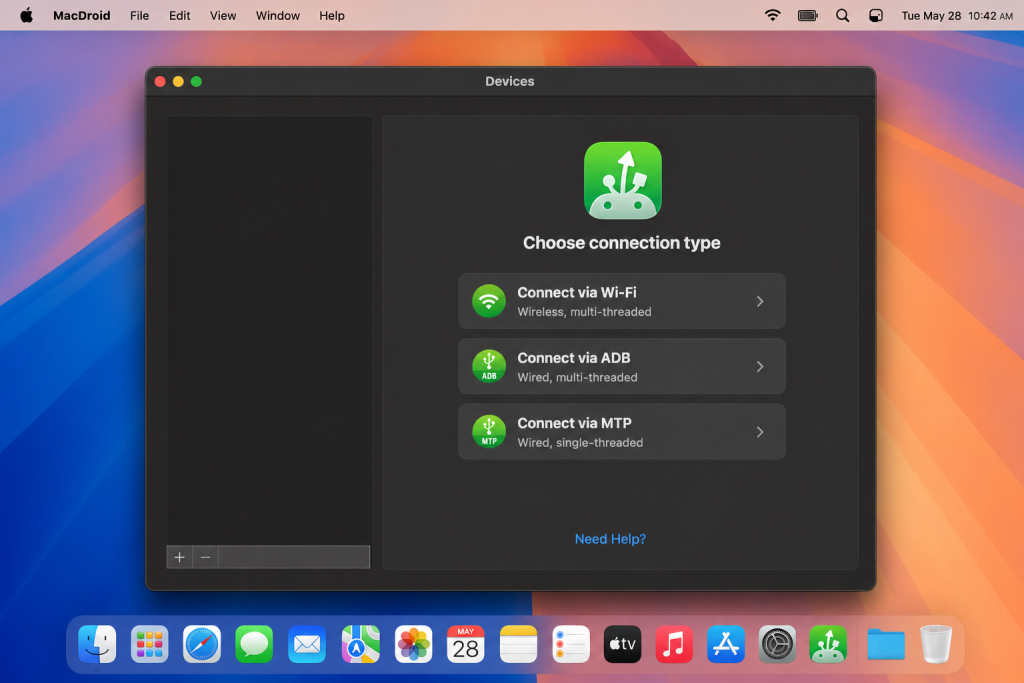
MacDroid connects your Android phone to your Mac over a USB cable. There’s no browser involved, no Wi-Fi connection to drop, and no file size ceiling imposed by how a browser handles memory. You plug in the cable, open MacDroid, and your Android phone appears in Finder — right next to your other drives — ready to transfer files of any size.
Why MacDroid specifically solves the large file problem
A 500MB video that drops at 1/3 progress in PairDrop transfers without interruption over MacDroid. A 10GB folder of RAW photos that would take multiple chunked transfers in PairDrop moves in a single, uninterrupted session. The difference isn’t speed settings or network configuration — it’s that USB doesn’t have the same constraints as a browser-based WebRTC connection.
No automatic zipping. Unlike PairDrop, MacDroid transfers files exactly as they are. Individual files stay individual. Folders stay as folders. Nothing gets compressed, nothing needs to be unpacked on the other end. What you send is what arrives.
Finder integration. Your Android phone appears in the Mac’s Finder sidebar when connected through MacDroid — in the same place as your external hard drives and USB sticks. You drag files the same way you move anything else on your Mac. If you know how to use Finder, you already know how to use MacDroid.
Consistent speed throughout. PairDrop’s speed can degrade over long transfers, especially on Android. MacDroid maintains steady transfer speeds from the first file to the last, because USB bandwidth doesn’t fluctuate the way Wi-Fi does.
Full two-way access. You can move files onto your Android device just as easily as pulling them off. Both directions are fast and reliable — which isn’t always the case with wireless tools.
Works completely offline. No Wi-Fi needed. No internet connection of any kind. Your files move through a physical cable between two devices and nowhere else. This also means they don’t pass through any network that others could access.
Broad Android compatibility. MacDroid works with Samsung, Google Pixel, OnePlus, Xiaomi, and most other Android phones and tablets without extra setup.
For anyone regularly moving large files between Mac and Android — videos, photo libraries, full project folders — MacDroid is the tool that removes the problem entirely rather than working around it.
Conclusion
PairDrop has a real file size limitation. The 200MB cap for iOS devices is documented and confirmed. Large file failures on Android — like transfers stopping at 1/3 progress with no error message — are reported bugs, not coincidences. And the automatic ZIP compression of multiple files adds friction to every transfer, regardless of size.
Workarounds exist, but they require effort and don’t always succeed. For small, occasional transfers on a good home network, PairDrop is a convenient option. For large files, regular transfers, or anything where you need the job to actually complete, a USB connection and MacDroid is the more reliable answer.
No file size ceiling. No mid-transfer drops. No unzipping on the other end. Just a cable, an app, and a transfer that works.
Frequently Asked Questions
There’s no single official limit, but in practice the ceiling is around 200MB when one of the devices is an iPhone or iPad — this is a confirmed, documented limitation. Between Android and Mac, there’s no hard cap, but files over 500MB frequently fail mid-transfer due to browser limitations. PairDrop was not designed for large file transfers and struggles with them regardless of network quality.
This is a known bug reported on PairDrop’s GitHub. The most common cause is that the browser loses the WebRTC connection during a long transfer — either due to memory pressure, a brief network fluctuation, or a timeout. Because the browser handles the transfer, it doesn’t always have a clean way to report what went wrong. The transfer simply stops. Smaller files are less likely to trigger this because they complete before the connection has a chance to drop.
No. MacDroid transfers files over USB, which means it’s not subject to the browser-based memory limits or WebRTC connection timeouts that affect PairDrop. File size is limited only by the storage available on your devices — not by the transfer method itself. Large videos, full photo libraries, and multi-gigabyte folders all transfer without issue.