
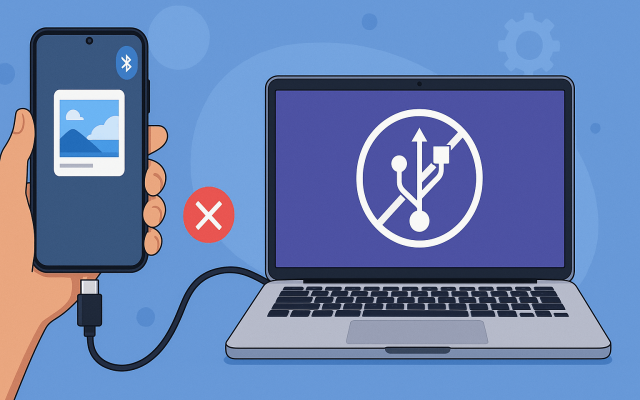
It’s one of the most frustrating modern tech experiences: you plug your Android phone into your computer, expecting files to appear instantly, and instead – nothing. No folders, no photos, no prompt. Just a charging battery icon.
This “invisible phone” problem is still with us in 2026, even as USB-C has become the universal connector and cloud syncing is everywhere. The good news is that most issues have straightforward fixes, once you understand why they happen. Let’s walk through what’s changed, what to check first, and what alternatives exist now that Google’s old Android File Transfer (AFT) app for Mac has finally been left behind.
Why This Still Happens in 2026
Years ago, phones behaved more like USB sticks: you plugged them in, and the storage mounted like a drive. Today, things are different:
- Scoped storage: Starting with Android 11, apps (and computers) don’t get raw access to your phone’s entire file system anymore. Security and privacy rules lock down root folders.
- USB-C confusion: Not every USB-C cable is equal. Some are charge-only, others are data-capable. A slim cable that came with a power brick may not work for file transfers.
- Operating system quirks:
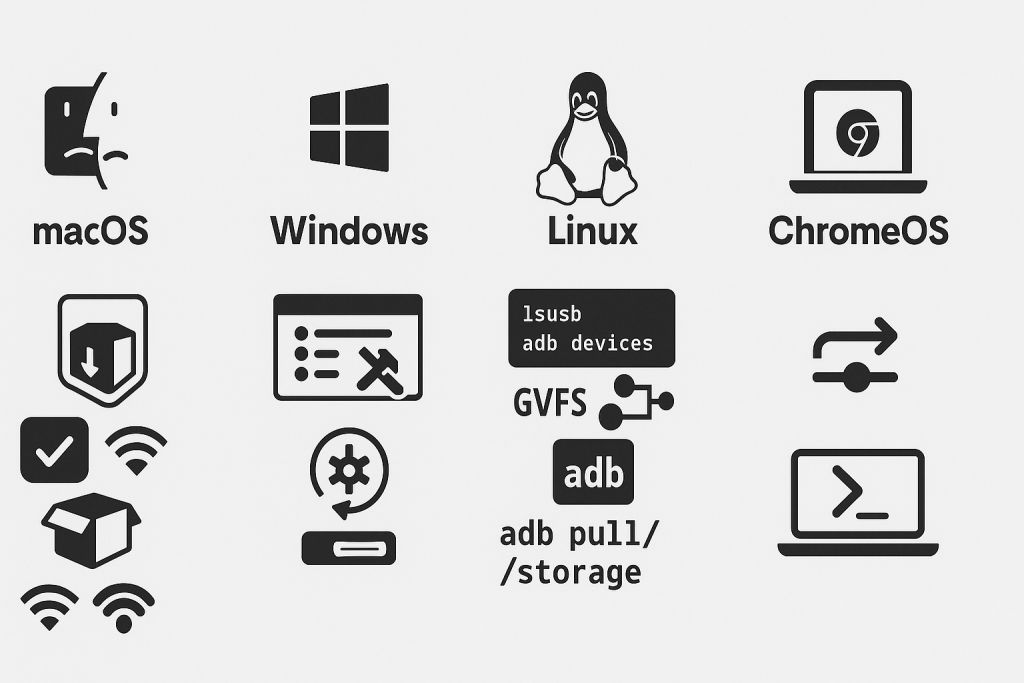
• macOS (Sonoma/Sequoia): Finder still doesn’t mount Android devices. AFT no longer works reliably and is effectively dead in 2026.
• Windows 11/12: File Explorer often recognizes Android devices as “Portable Devices,” but drivers can fail or vanish.
• Linux/ChromeOS: Support depends on mtp packages, Flatpak permissions, and desktop environment integration. - Enterprise/work devices: Phones managed by employers often block USB file transfers entirely through mobile device management (MDM).
Sadly, it hasn’t.
First Aid Checklist
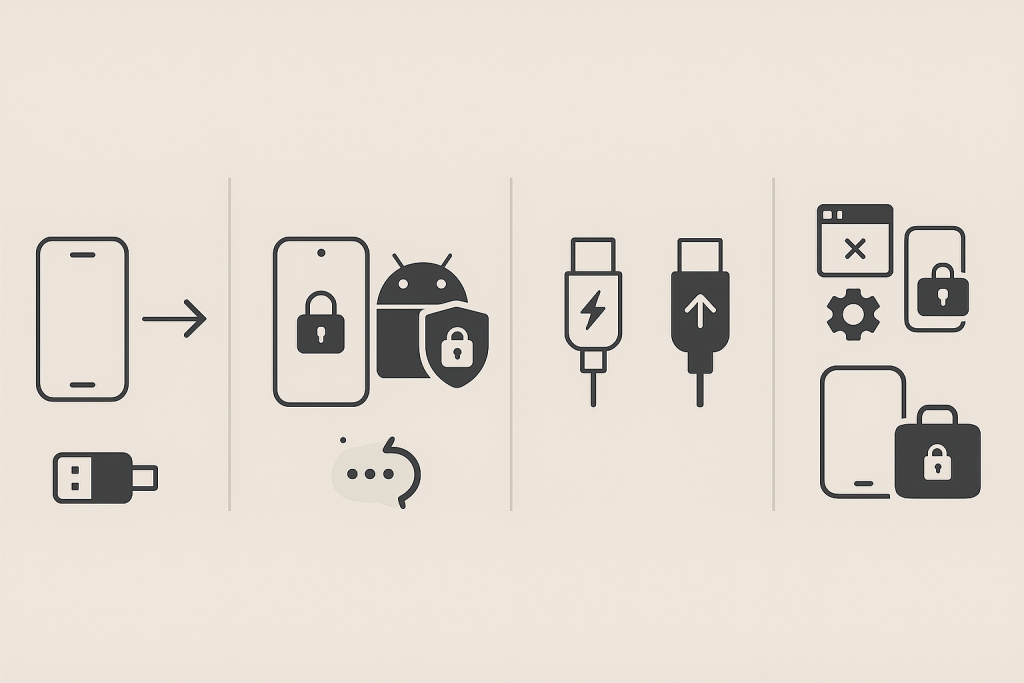
Before you dive into complex troubleshooting, run through this 60-second checklist:
- Swap your cable – make sure it’s USB 3.x data-capable. Try another port and avoid hubs/docks.
- Unlock your phone – many devices refuse to expose storage until you’re past the lock screen.
- Check the notification shade – look for “USB for…” and select File Transfer (MTP).
- Restart both devices – yes, it still fixes things.
- Disable USB debugging (temporarily) – sometimes developer options interfere with trust prompts.
Often, one of these quick steps resolves the problem.
Platform-Specific Fixes
macOS (Sonoma, Sequoia and beyond)
Google’s Android File Transfer is no longer viable. Apple’s sandboxing rules and Google’s lack of updates left it broken. If Finder shows nothing:
- Use a third-party MTP client such as OpenMTP or HandShaker.
- Approve permissions under System Settings → Privacy & Security → Files and Volumes.
- Or skip the cable entirely: Quick Share, AirDrop-style tools, or Wi-Fi sync apps are faster and less error-prone.
As one Apple Discussion user wrote in 2024:
AFT is abandonware. Mac users need to move on to third-party apps or wireless.— Apple Support Communities
Windows 11/12
If your phone doesn’t appear in Explorer:
- Open Device Manager → Portable Devices. If your phone is “Unknown device,” right-click → Update Driver.
- Make sure the Windows Media Player Network Sharing Service is running (yes, some parts of Windows still depend on this).
- OEM tools like Samsung’s Smart Switch or Motorola Device Manager may help—but they can also conflict, so test with and without.
Linux (Ubuntu, Fedora, Arch, etc.)
Linux desktops support MTP via gvfs-mtp or jmtpfs, but Flatpak sandbox permissions sometimes block access.
- Verify the device is seen:
lsusboradb devices. - Install
/reinstall gvfs-mtp. - For power users, fall back to:
adb pull /storage/emulated/0/DCIM
ChromeOS
ChromeOS integrates Android devices natively, but occasional resets help. Toggle Developer Options → Reset USB Preferences and re-plug.
The Hidden Gotchas
Sometimes, the culprit isn’t your computer at all:
- Charge-only cables: Many bundled cables with wall chargers don’t carry data.
- Battery saver mode: Suppresses MTP prompts on some phones.
- Work profiles: Corporate policies can hide files completely.
- Screen lock: No mount until you unlock.
- SD cards: exFAT/NTFS formatting can confuse MTP, showing empty folders.
Do You Even Need a Cable Anymore?
By 2026, wireless options are often faster and less frustrating:
- Quick Share (Google/Samsung) works with Windows and Chromebooks, rivaling Apple’s AirDrop.
- LAN tools like KDE Connect, Snapdrop, and Syncthing offer local transfers without cloud middlemen.
- Cloud: Google Photos, Drive, or OneDrive can sync photos and docs automatically—though privacy-minded users prefer direct transfers.
Power User Options
If you’re comfortable with command line tools, ADB (Android Debug Bridge) remains reliable. Run:
adb devices– to confirm the device is recognized.adb pull /path/to/file– to copy files directly.
Developers should also check Default USB Configuration under Developer Options to ensure MTP is selected.
A Note on Security
Alternatives to Android File Transfer on Mac
Since Android File Transfer is effectively dead in 2026, Mac users need replacements. One of the most recommended is MacDroid.
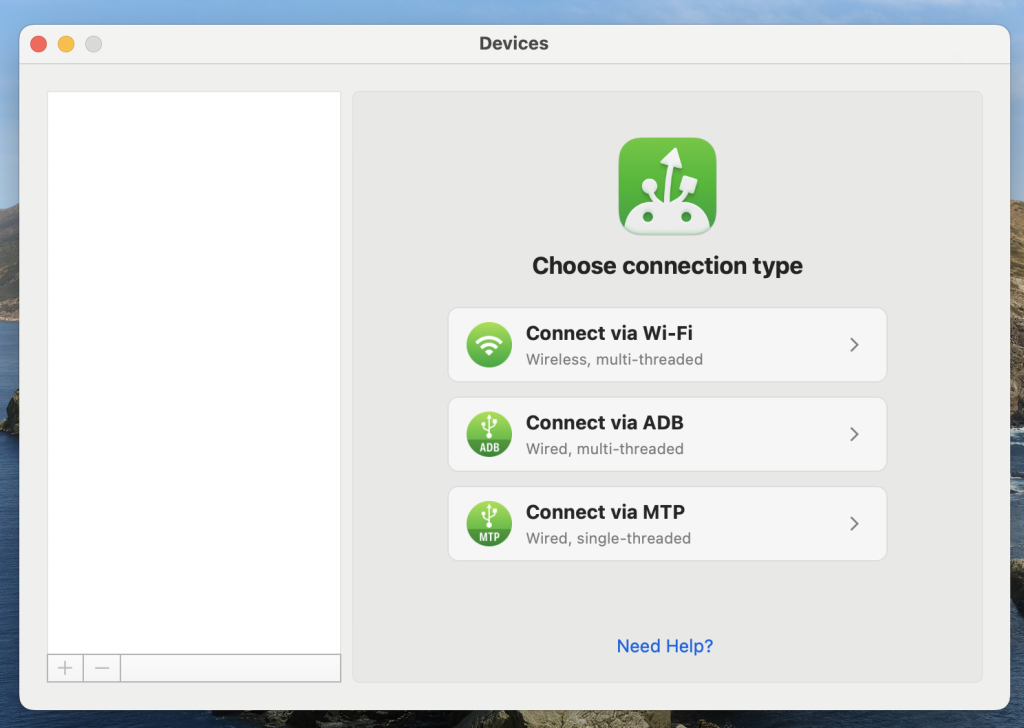
MacDroid mounts your Android device directly in Finder, no clunky interface required. It supports both internal storage and SD cards, and can transfer entire folders, photos, and even large video files. Unlike AFT, it’s updated regularly to stay compatible with the latest versions of macOS and Android. For anyone who moves files between a Mac and an Android phone often, it’s a far smoother experience.
Final Word
In 2026, the days of just plugging in a phone and seeing it appear as a USB drive are gone. Between new Android storage rules, cable inconsistencies, and operating system quirks, Android file transfer can be finicky. But with the right checklist – and a willingness to use wireless or modern alternatives – you don’t have to stay stuck staring at an empty Finder window.
On Reddit, users still report the same issue: